Troubleshooting
Use this guide when the Neotask Gateway will not start, disconnects repeatedly, or cannot complete agent work.
Check Gateway Health In The Desktop App
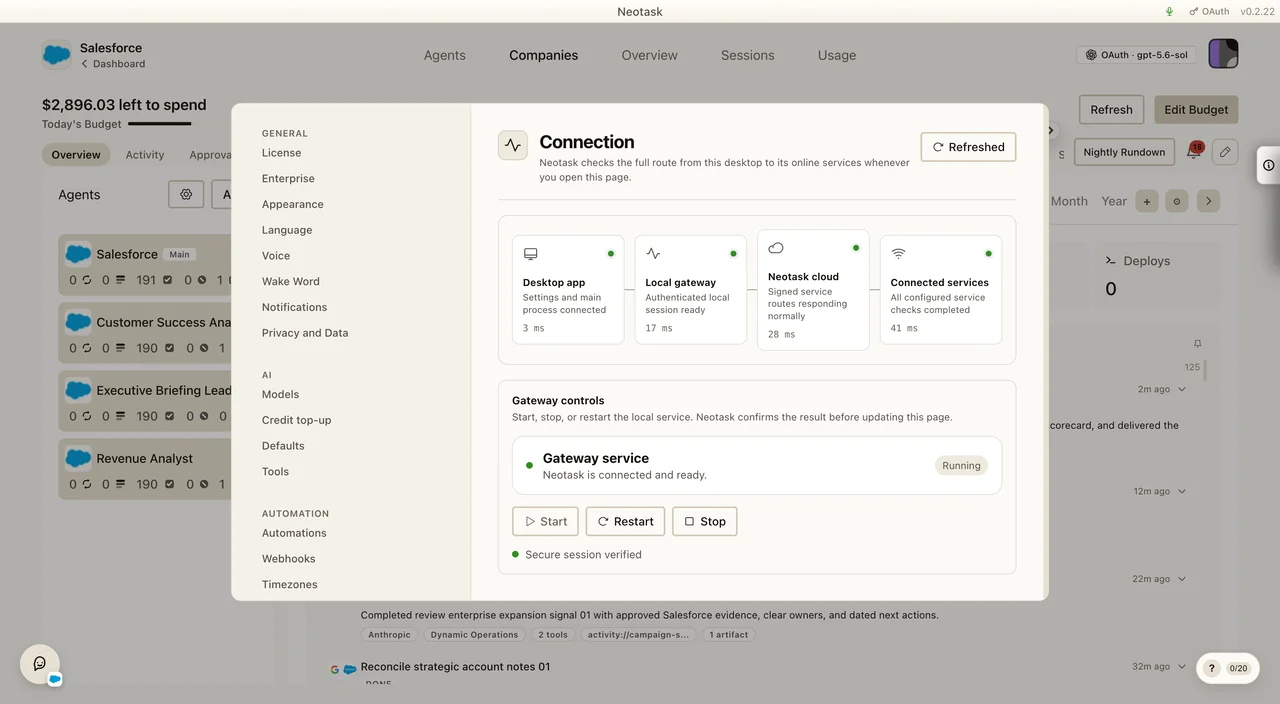
Connection
Open Settings → Infrastructure → Connection. This screen tests the full path through the desktop app, local Gateway, Neotask cloud, and connected services. It also provides Start, Restart, and Stop controls for the local Gateway.
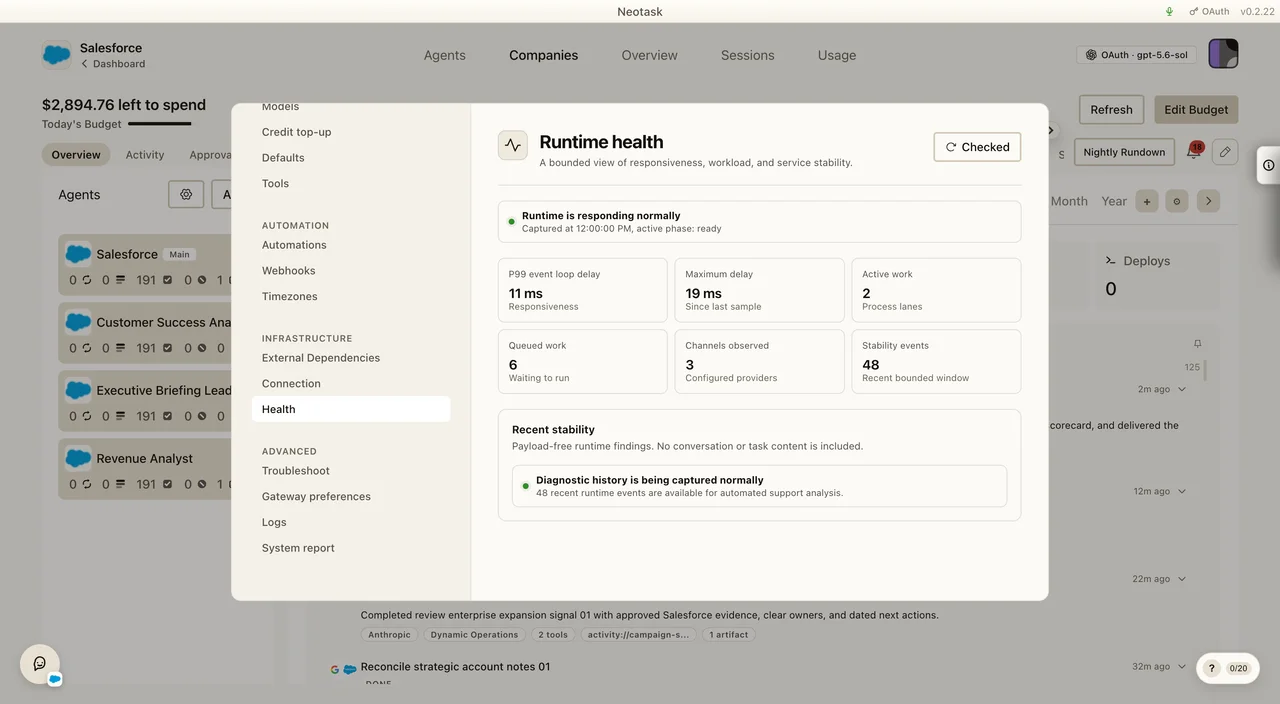
Runtime Health
Open Settings → Infrastructure → Health and click Run check. Review responsiveness, active work, queued work, channels observed, and recent stability events.
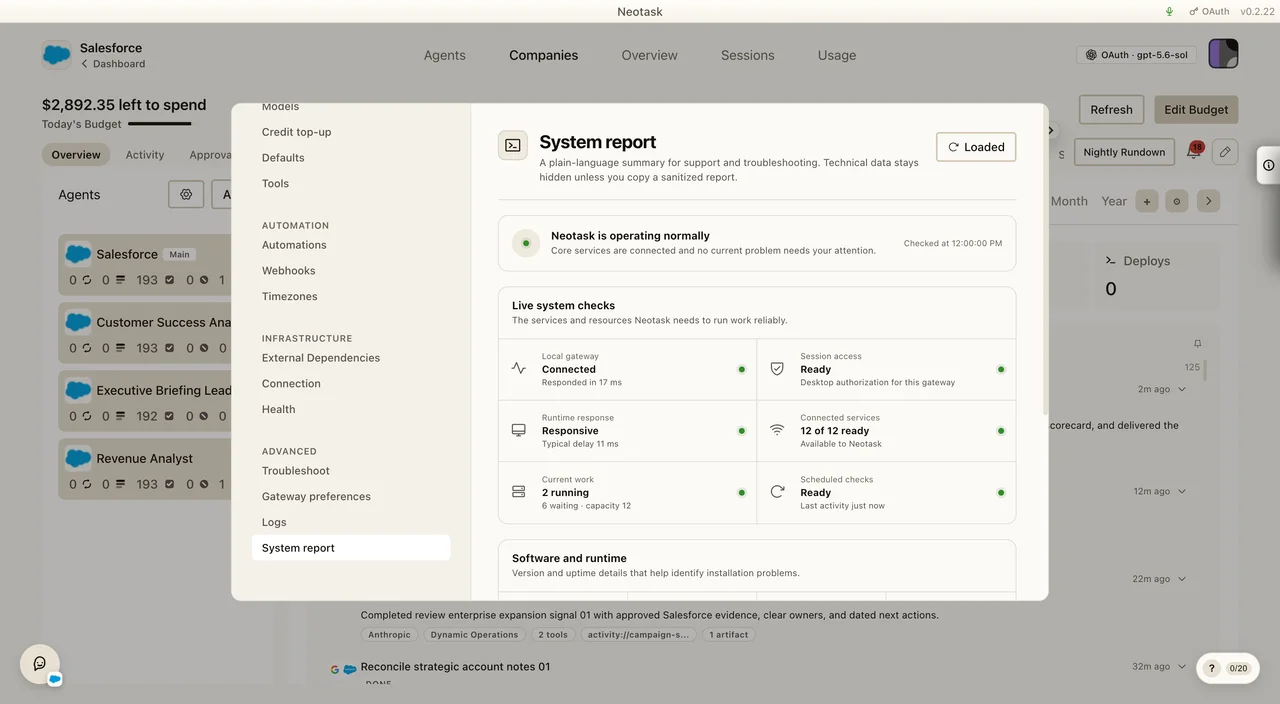
System Report
Open Settings → Advanced → System report. This combines the local Gateway, session access, runtime response, connected services, current work, and scheduled checks in one report.
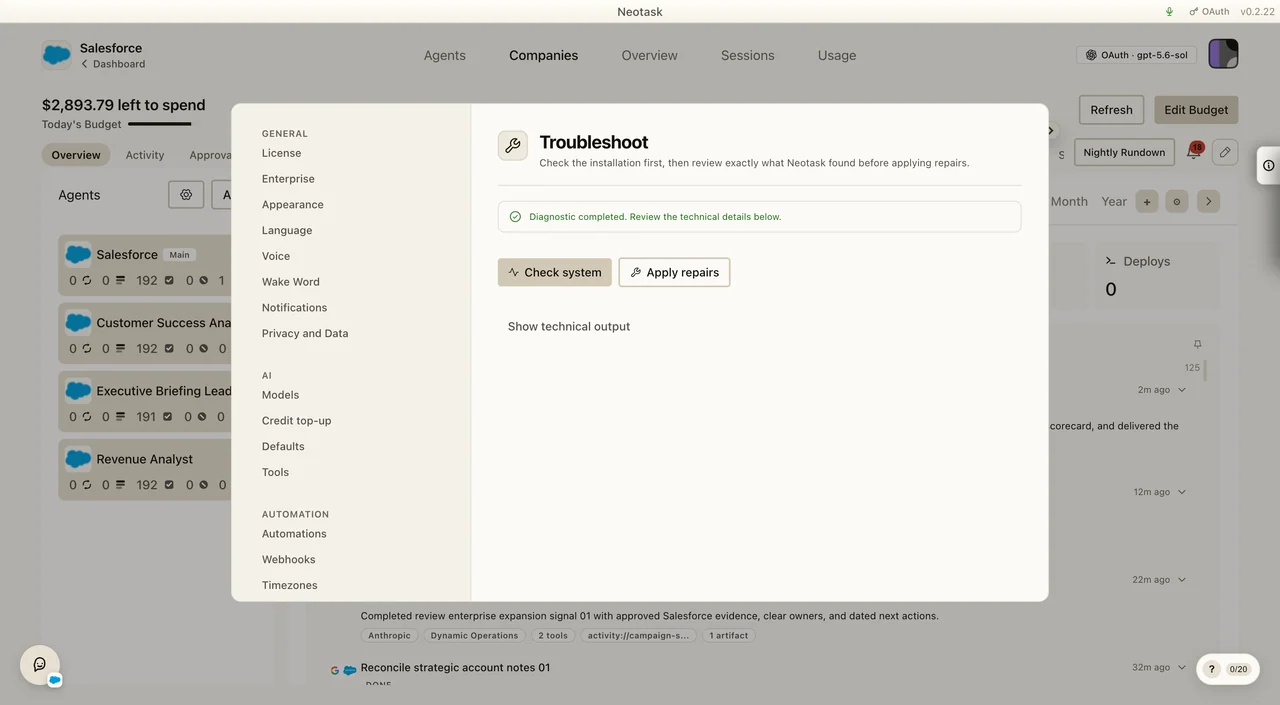
Doctor And Repairs
- Open Settings → Advanced → Troubleshoot.
- Click Check system. The check is read-only.
- Open Show technical output for the individual findings.
- Click Apply repairs if Neotask offers it.
- Wait for the repairs and automatic follow-up check to finish.
Retry the failed action after the follow-up check. If the problem remains, copy the technical output and include it in the support request.
External Dependencies And Logs
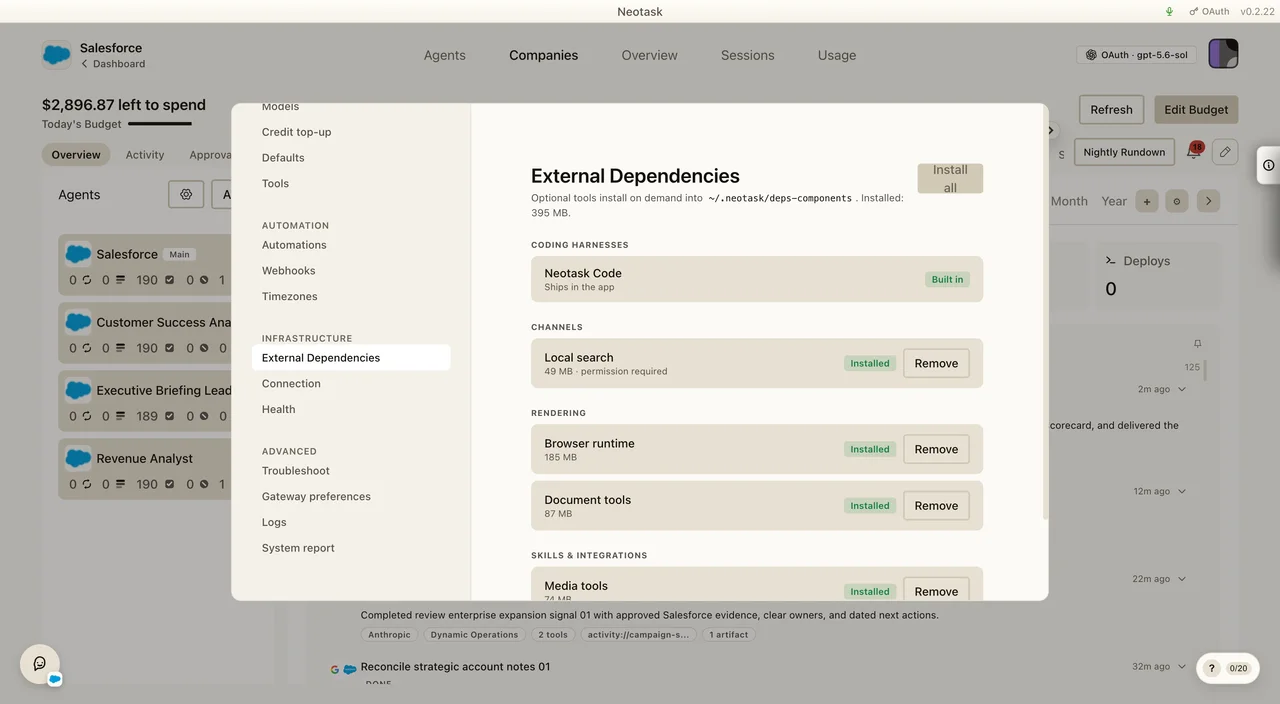
Open Settings → Infrastructure → External Dependencies when an optional browser, document, media, local-search, or coding component is missing.
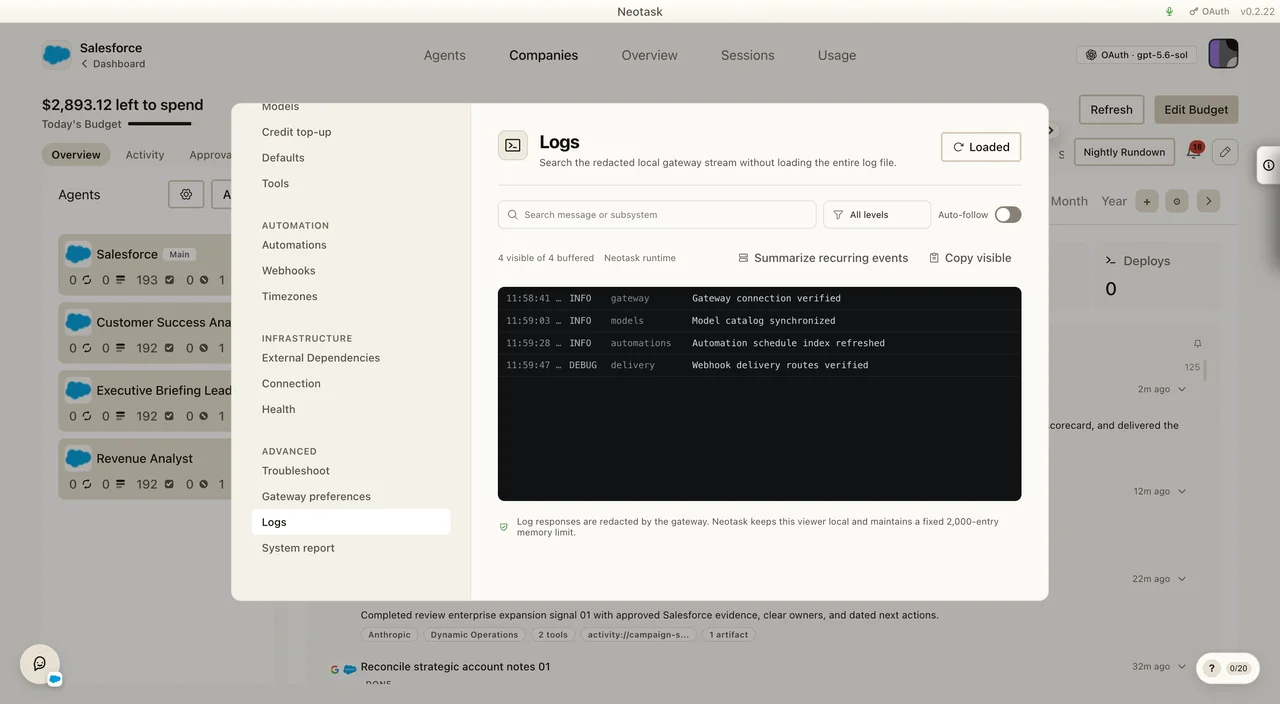
Open Settings → Advanced → Logs to search and copy the redacted local Gateway event stream.
Gateway Issues
Gateway won't start
- Fully quit Neotask and open it again once.
- Open Settings → Infrastructure → Connection and check the Local gateway stage.
- Use Start or Restart under Gateway controls.
- Review Settings → Advanced → System report for the first live system check that needs attention.
- Run Check system from Settings → Advanced → Troubleshoot if the Gateway still does not start.
- Open the technical output and read the first failed check.
- Click Apply repairs and wait for verification.
- If verification fails, copy the technical output for support. Do not delete Gateway files or edit local configuration at random.
Gateway starts but no channels connect
- Missing credentials, Each channel needs its own auth (bot token, QR scan, API key).
- Network issues, Channels need internet access to connect to messaging platform APIs.
- Rate limits, Some platforms rate-limit new connections. Wait and retry.
Can't connect from the desktop app
- Wrong port, Ensure the desktop app connects to the correct Gateway port.
- Auth mismatch, The Gateway token must match.
- Firewall, Ensure the port is accessible if the Gateway is on another machine.
Channel Issues
WhatsApp won't connect
- QR expired, QR codes expire after ~60 seconds. Re-scan quickly.
- Multi-device limit, WhatsApp limits linked devices.
- Session corrupted, Delete the WhatsApp session directory and re-pair.
Telegram bot not receiving messages
- Bot token invalid, Verify your bot token with BotFather.
- Privacy mode, Bots only see messages when mentioned in groups by default.
- Webhook conflict, Another service may be consuming messages.
Discord bot not responding
- Missing intents, Enable required Gateway Intents in the Discord Developer Portal.
- Missing permissions, The bot needs read and send permissions in target channels.
Model Issues
Auth errors
- Key not configured, Ensure the provider API key is set.
- Key expired, Some OAuth tokens expire. Re-authenticate.
- Rate limit, Key rotation will switch automatically if you have multiple keys.
Slow responses
- Model choice, Larger models are slower. Try a faster model for quick tasks.
- Context size, Long conversations slow processing. Try
/compact. - Network latency, Check connectivity to your model provider.
Node Issues
Companion app can't find the Gateway
- Binding mode, The Gateway must be bound to LAN or Tailnet (not loopback) for external devices.
- Same network, For Bonjour discovery, both devices must be on the same network.
- Manual entry, Enter the Gateway host and port manually in app settings.
Session Issues
Context window exceeded
- Compact, Use
/compactto summarize and reset context. - Enable auto-compaction, Set a compaction threshold in config.
- New session, Start fresh with
/new.
Technical Output
The Health and System report screens show the current operating state. The Troubleshoot screen keeps the Doctor's detailed diagnostic output collapsed by default.
- Run Check system.
- Select Show technical output.
- Read or copy the checks listed there.
- Share the copied output with support if the automated repair and follow-up check do not resolve the issue.
The output stays on your device unless you copy and share it.
Getting Help
- Run Check system and Apply repairs from the Troubleshoot screen.
- Copy the technical output if the follow-up check fails.
- Contact support through the chat widget in the desktop app.