Agent Spending
Review And Limit Agent Spend
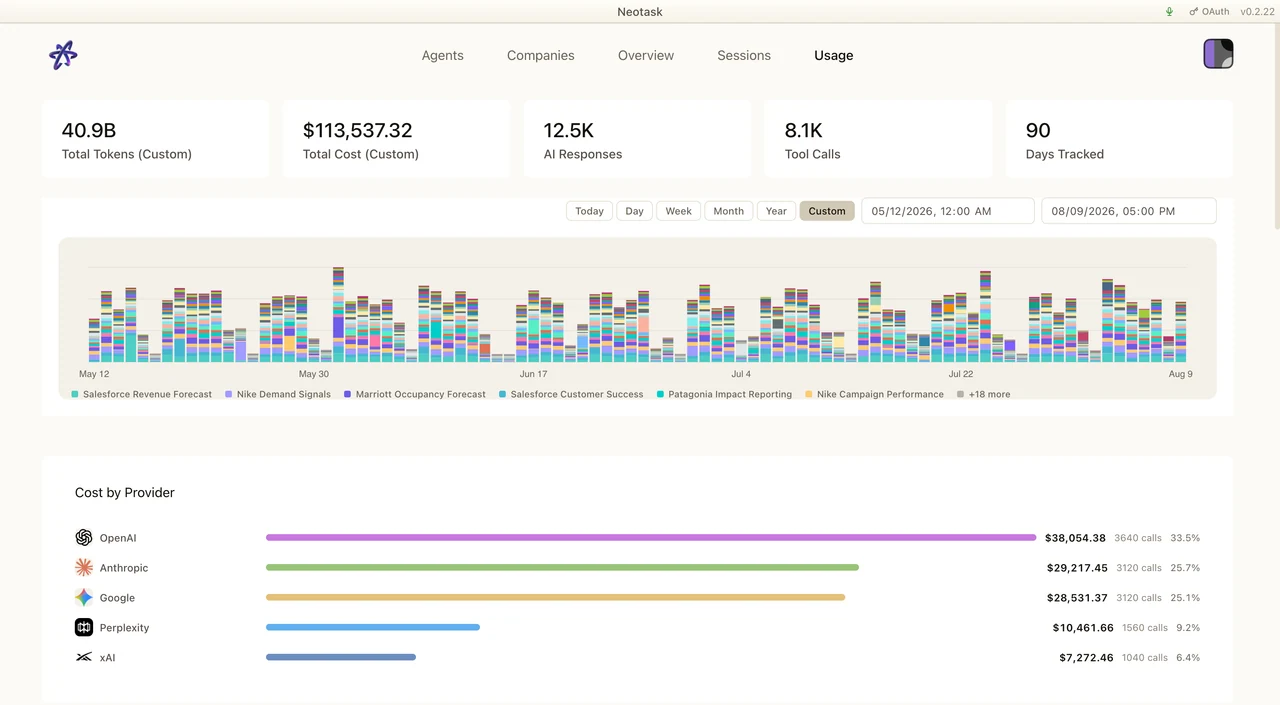
- Open Usage to see cost by agent and model.
- Open the agent or company budget controls.
- Set the permitted spend and review the projection.
- Return to Usage after the next run to confirm the charge.
Agent spending lets your AI agents pay for things on your behalf, using a company-funded card that stays inside a hard cap you set, where every single charge needs your explicit approval before any money moves.
It is part of Neotask Payments, and you turn it on in Settings → Payments → Agent spending.
What Agent Spending Is
When an agent is working on a task and needs to buy something, a subscription, an ad credit, a one-off purchase, it cannot reach into your bank account or use a saved card on file. Instead, agent spending gives it a controlled way to ask:
- The agent requests the purchase, describing the merchant, the amount, and why it needs to spend.
- You approve or decline that exact charge.
- Only after your approval does any money move, on a dedicated Neotask Payments card that is funded by a wallet you top up and bounded by a hard cap you set.
It is the outbound side of Neotask Payments: money going out so your agents can get things done. (The other side of Neotask Payments, collecting revenue from your own customers, is covered separately; see Neotask Payments.)
Why It Is Safe
Agent spending is built around two safety features that can never be turned off:
1. Every charge needs your approval, no exceptions
A spend request is always routed to you for a human decision. This is true in every company mode, including Fully Autonomous. Even a company you have set to run completely on its own will still stop and ask you before spending a cent.
There is no setting, no rule, no "trusted app" exception, and no learned auto-approval that can let an agent spend money on its own. Spending sits above every automatic-approval path in the system, so nothing can route around it.
2. A hard spend cap you control
You set a hard cap, the absolute ceiling on what an agent can spend. No single charge can ever exceed it, regardless of what the agent requests. The real spendable amount is always the lower of your hard cap and your current wallet balance, so you are protected on both ends: a charge above your cap is declined, and a charge above your funded balance is declined.
And there is no rush
An approval waits for you. There is no countdown and no auto-expiry that quietly approves a charge if you do not answer in time. A pending spend request simply sits and waits until you act on it, approve it tomorrow and it is still there; ignore it and nothing happens. Money only ever moves on a deliberate human "approve."
Before You Begin, Connect Neotask Payments
Agent spending is built on top of Neotask Payments. Before the agent-spending controls appear, you must have a connected Neotask Payments account for the company.
Until Neotask Payments is connected, the Agent spending section stays hidden. Once it is connected, the section appears in Settings → Payments.
See Neotask Payments to set up your account first.
| Requirement | Why |
|---|---|
| A connected Neotask Payments account | The wallet and card are issued under your Neotask Payments account |
| Company in build mode | Agent spending is a company-operation feature |
| You are an admin on the company | Funding and cap changes are administrator actions |
How To Enable It
Open Settings → Payments.
Find the Agent spending section (it appears once Neotask Payments is connected).
Flip the master toggle on.
A confirmation appears explaining what you are enabling. It restates the key promise:
Your agents will be able to request purchases on a Neotask Payments card, up to the hard cap you set. Every charge still needs your explicit approval before any money moves, nothing is ever spent automatically. You can set the cap to 0 or turn this off at any time to freeze all agent spending.
Confirm with Enable agent spending.
When you first enable it, the cap starts at 0 until you set one, so spending is effectively frozen until you deliberately raise the cap. You are never one toggle away from open-ended spending.
Setting The Hard Cap
The spend controls show the card balance, cap, and agent-spending state together.
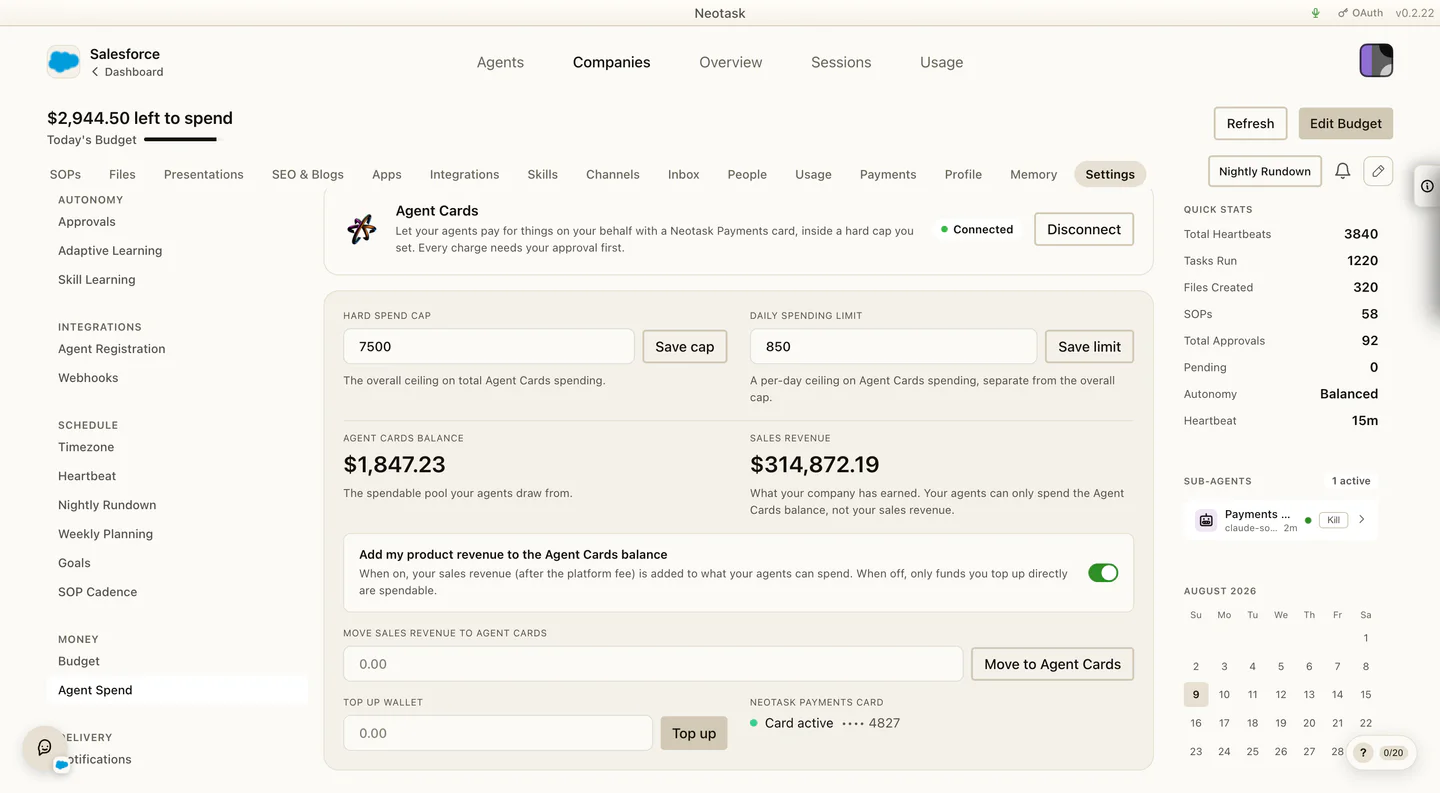
The hard spend cap is the most important control on the page. It is the absolute ceiling on any single charge.
- Enter a dollar amount in the Hard spend cap field and click Save cap.
- A charge can never exceed this cap, no matter what the agent asks for.
- The effective limit on any one purchase is always the lower of your cap and your wallet balance.
Set it to the most you would ever want a single agent purchase to be, and no higher.
Topping Up The Wallet
The wallet is the pool of company funds that backs the card. Agents can only spend what the wallet holds.
- Enter an amount in the Top up wallet field and click Top up.
- The wallet balance updates to reflect the new funded total.
- Your wallet balance is shown on the page so you always know how much is available.
Because spending is capped by both the wallet balance and the hard cap, keeping the wallet modest is itself a safety lever, agents can never spend money that isn't there.
What Happens When An Agent Wants To Spend
Here is the full flow, end to end:
- The agent asks. While working a task, the agent decides it needs to buy something and submits a spend request, with the merchant, the amount, the currency, and a reason.
- It waits for you. The request becomes a pending approval. The agent's purchase is paused, it cannot proceed until you decide. There is no timeout; the request waits indefinitely.
- You decide. You approve or decline the charge, right in the app, or in a connected channel where you handle approvals.
- On approve, the charge runs once. Only after your approval is a single-use Neotask Payments card prepared for that exact purchase, scoped to the approved amount. The agent uses it once to complete the checkout.
- The card matches the approval. A charge is only allowed through if it matches your approval and stays within both the hard cap and the wallet balance. Anything over-cap, over-balance, or unmatched is declined automatically.
- It's recorded. The completed charge shows the real merchant and the app it ran for, so your records always reflect exactly what was bought and on whose behalf.
If you decline, no money moves and the agent does not get the purchase, it carries on without it.
How To Pause Or Freeze Spending
You are always one action away from stopping all agent spending. Two ways, either works instantly:
| To... | Do this | Effect |
|---|---|---|
| Freeze spending but keep it set up | Set the hard cap to 0 | No charge can be approved or run, the ceiling is zero |
| Turn agent spending off entirely | Flip the master toggle off | Spending is disabled; the cap is set to 0 to freeze everything |
Turning the master toggle off automatically drops the cap to 0, so a single click fully freezes agent spending. You can re-enable it later, your wallet balance and settings are preserved, and you will be asked to acknowledge the terms again.
Key Things To Remember
- Agents can NEVER spend without your approval. There is no mode, rule, or automation that bypasses this. Full autonomy does not mean autonomous spending.
- The hard cap is absolute. No charge ever exceeds it.
- Approvals never expire. A pending spend request waits for you, however long it takes.
- You can freeze it instantly by setting the cap to 0 or toggling it off.
- Every charge is recorded with the real merchant and the app it ran for.