Troubleshooting
This guide covers common issues you may encounter while using Neotask and how to resolve them.
Check Gateway Health Before Applying Repairs
Neotask has separate screens for connection status, runtime health, the combined system report, and automated repairs. Use them in this order.
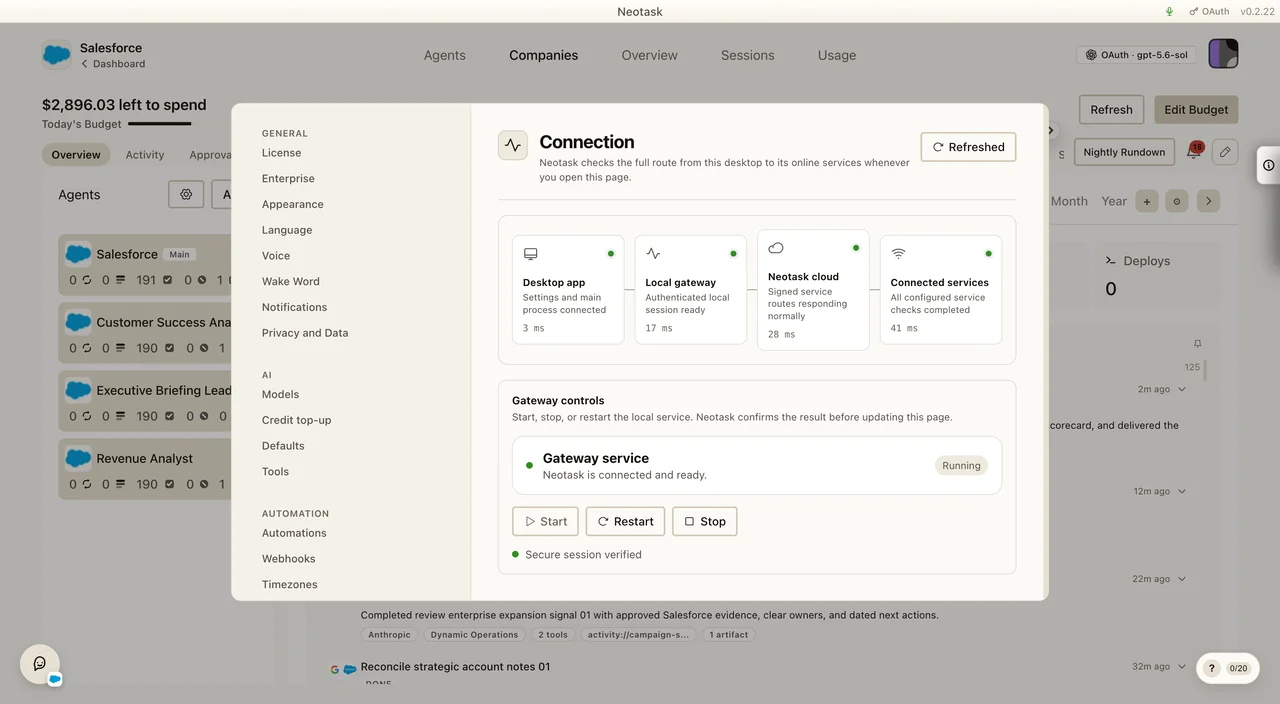
1. Check The Connection Path
- Open Settings → Infrastructure → Connection.
- Confirm the path from Desktop app to Local gateway, Neotask cloud, and Connected services.
- Read the first stage that is not ready.
- Use Start or Restart under Gateway controls when the local Gateway is stopped or stale.
- Refresh the page and confirm that every stage is ready.
2. Run The Runtime Health Check
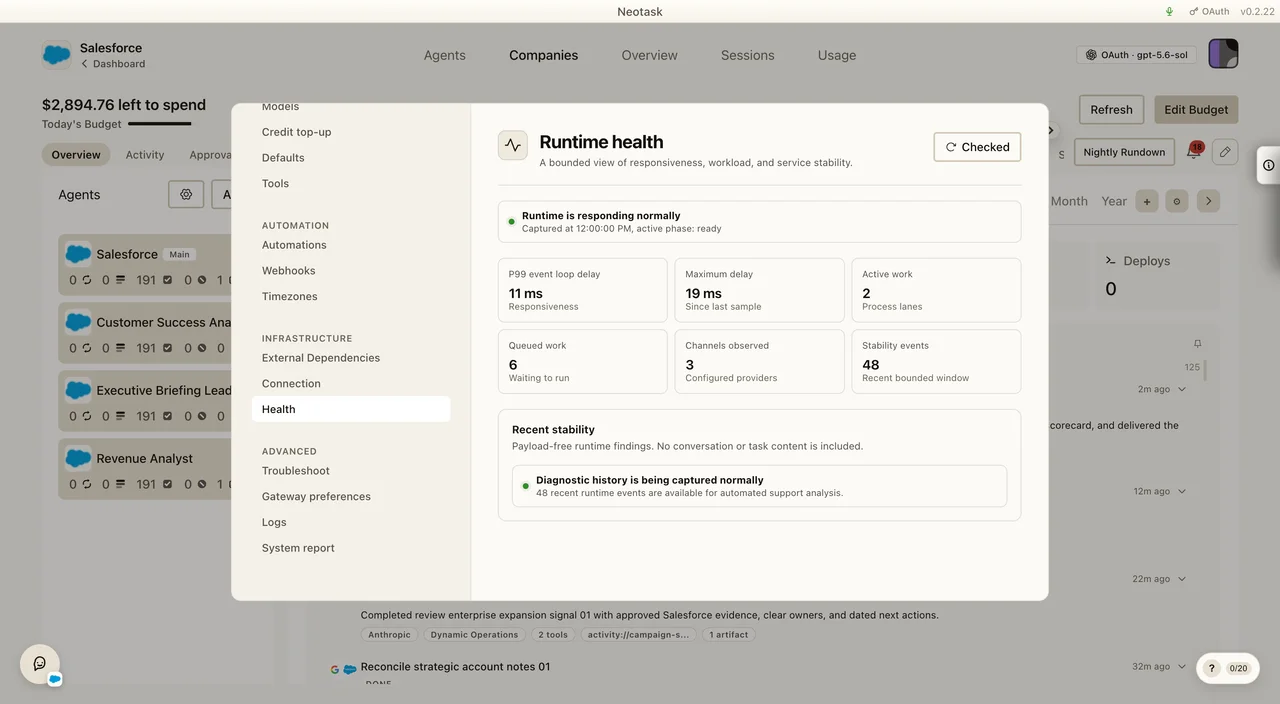
- Open Settings → Infrastructure → Health.
- Click Run check.
- Review event-loop delay, active work, queued work, channels observed, and recent stability events.
- A high queue, delayed runtime, or dropped diagnostic events can explain slow or stalled work even when the Gateway is connected.
3. Review The Combined System Report
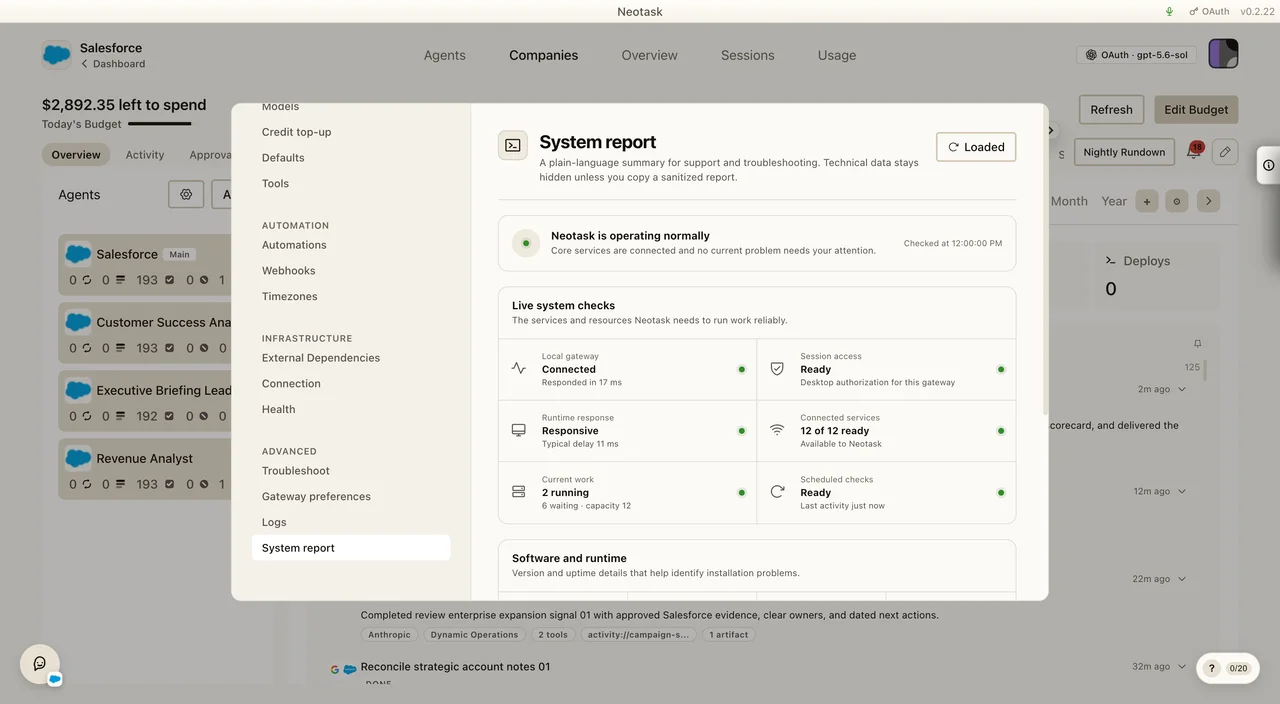
- Open Settings → Advanced → System report.
- Review Local gateway, Session access, Runtime response, Connected services, Current work, and Scheduled checks.
- Start with the first item that needs attention.
- Copy the sanitized report when support needs the full result.
4. Run The Doctor And Apply Repairs
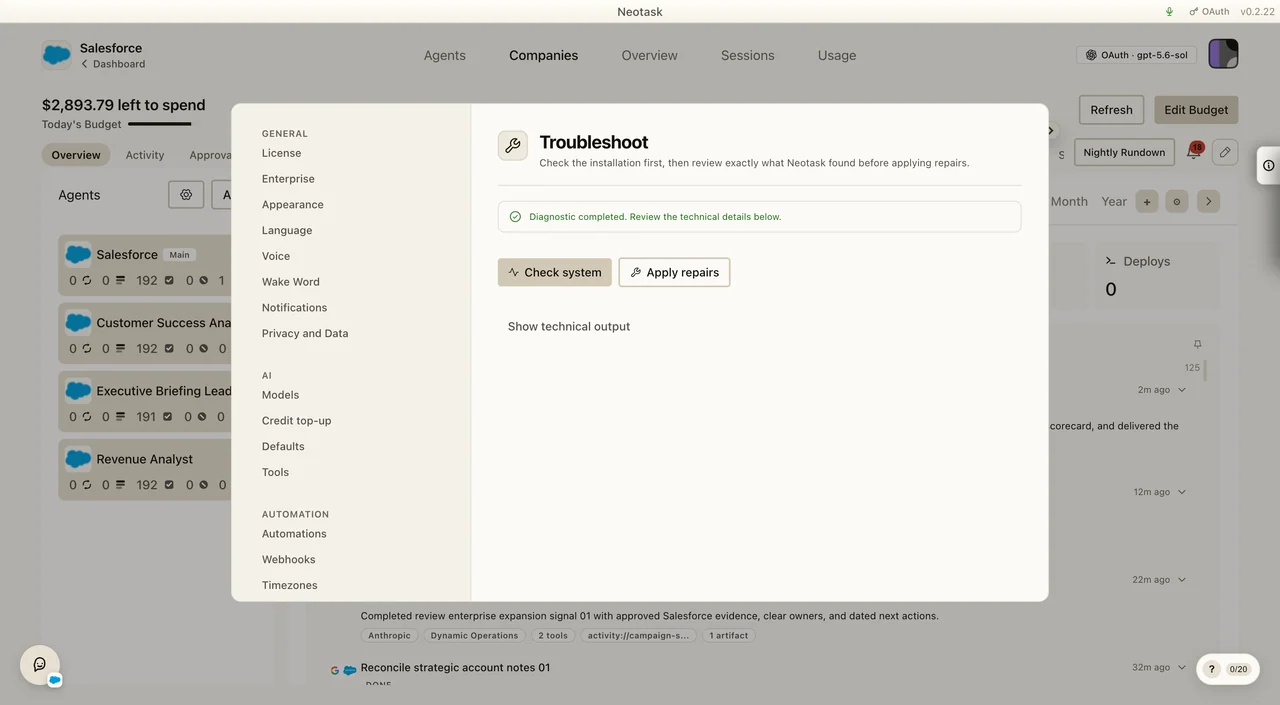
- Open Settings → Advanced → Troubleshoot.
- Click Check system. This check does not change your installation.
- Select Show technical output to read the detailed findings.
- Click Apply repairs when the check makes it available.
- Keep Settings open while Neotask applies repairs and runs the follow-up check.
Retry the original action after the follow-up check completes. If it still fails, copy the technical output and include it when you contact support.
Additional Checks
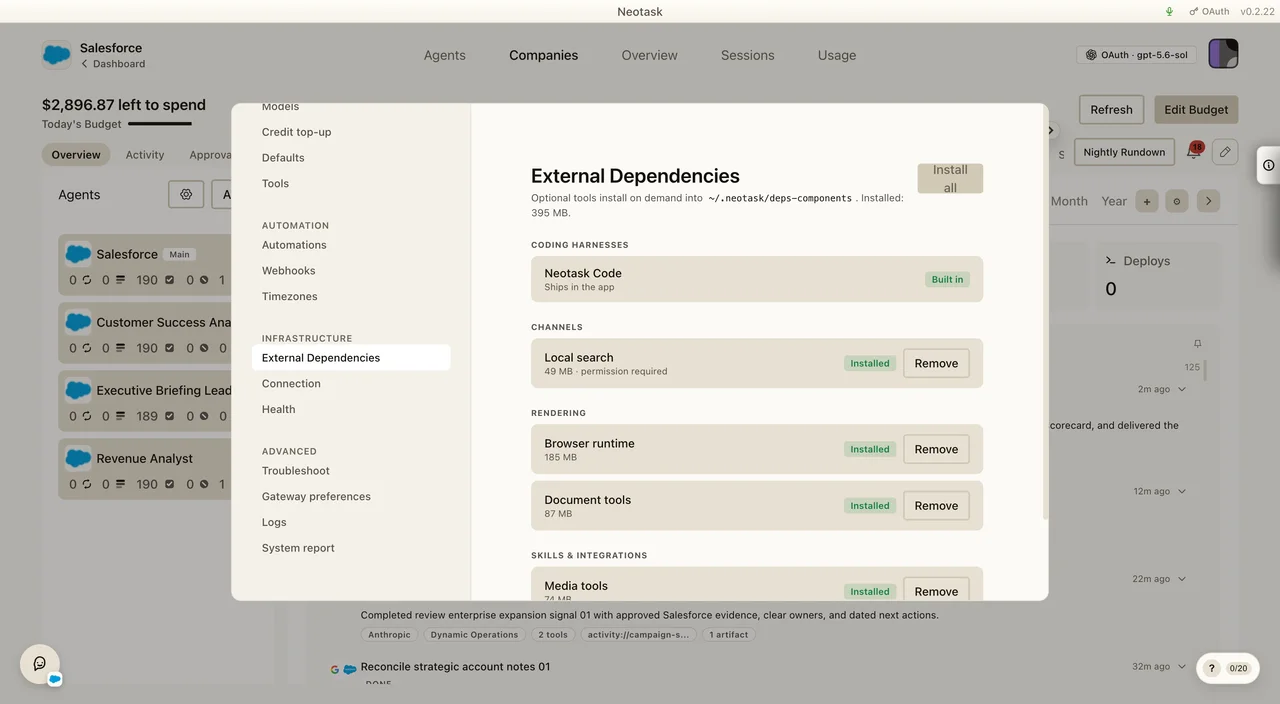
- Open Settings → Infrastructure → External Dependencies when browser, document, media, local-search, or coding tools are missing. Install only the component the failed work requires.
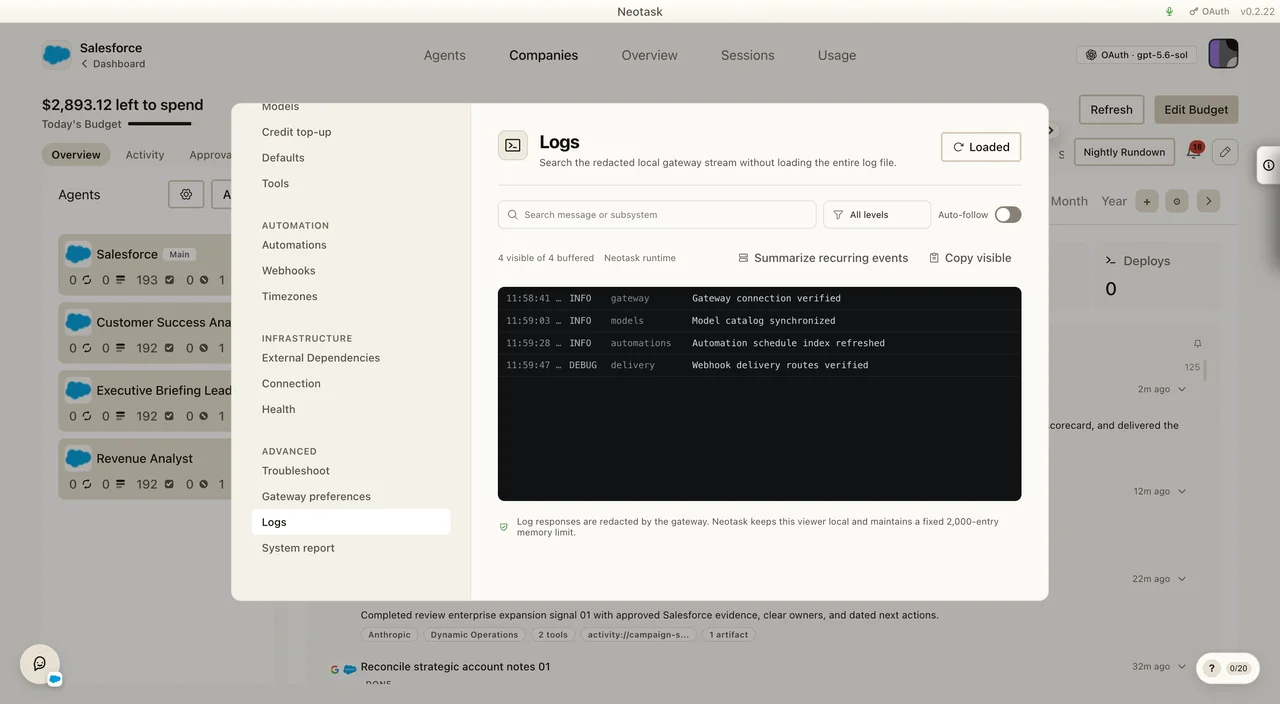
- Open Settings → Advanced → Logs to search the redacted local Gateway stream by message, subsystem, or level. Copy the visible entries when support asks for runtime events.
The Logs screen is local and redacted. Use it when the health screens identify a runtime or service problem that needs event detail.
License & Activation
"Invalid license key"
- Verify the key format:
NT-XXXXXXXX-XXXXXXXX-XXXXXXXX-XXXXXXXX - Check for extra spaces or missing characters
- Ensure you have an active internet connection
- Try re-entering the key carefully
"License revoked"
- Your license has been revoked by the server
- Check your billing status at neotask.ai
- Contact support if you believe this is an error
"License expired"
- Your subscription has lapsed
- Renew your plan through the billing portal
- The app enters read-only mode when expired
"Offline grace period expired"
- You've been offline for more than 72 hours
- Connect to the internet for automatic revalidation
- The app will resume normal operation once connected
"Version blocked"
- Your app version has been blocked for security reasons
- Update to the latest version immediately
- Auto-update should prompt you; if not, download from the website
Gateway Issues
"Gateway failed to start"
- Fully quit Neotask and open it again.
- Open Settings → Infrastructure → Connection and check the Local gateway stage.
- Use Start or Restart under Gateway controls.
- Open Settings → Advanced → System report and review the live system checks.
- If the Gateway still fails, run Check system from Settings → Advanced → Troubleshoot.
- Review the first failed item in the technical output.
- Click Apply repairs when it is available.
- If the follow-up check still fails, copy the technical output and send it to support.
"3-strike lockout"
- After 3 consecutive gateway failures, operations are blocked
- Restart the app to reset the lockout counter
- If it persists, check logs for the underlying error
"Gateway disconnected"
- The local runtime lost connection
- Refresh Settings → Infrastructure → Connection and confirm which stage disconnected
- Run Settings → Infrastructure → Health to check runtime delay, queued work, channels, and stability events
- Review Settings → Advanced → System report for session access, connected services, current work, and scheduled checks
- Use Settings → Advanced → Troubleshoot when the earlier checks identify a problem that needs repair
- Apply the offered repairs and wait for the follow-up check
- Copy the technical output for support if the disconnect continues
Voice Issues
"No audio input detected"
- Grant microphone permission:
- macOS: System Preferences → Privacy & Security → Microphone → Enable for Neotask
- Windows: Settings → Privacy → Microphone → Allow apps to access
- Check that your microphone is not muted
- Verify the correct input device is selected in system settings
"Wake word not triggering"
- Ensure voice activation is enabled in Settings
- Check that wake mode is set to "Porcupine" (not "Shortcut" or "Off")
- Say the wake phrase clearly: "Hey Neotask"
- Try the keyboard shortcut instead (Cmd+Shift+Space / Ctrl+Shift+Space)
- Check if another app is using the microphone
"TTS audio choppy or delayed"
- Check your internet connection (TTS requires ElevenLabs API)
- ElevenLabs may be experiencing rate limiting
- Try a different voice from Settings
- Reduce background network activity
"Voice shortcut not working"
- Another app may have claimed the same shortcut
- Change the shortcut in Settings → Activation → Keyboard Shortcut
- On macOS, check System Preferences → Keyboard → Shortcuts for conflicts
Connection & Network
"Cannot connect to server"
- Verify your internet connection
- Check if neotask.ai is accessible in your browser
- If behind a corporate firewall, ensure HTTPS traffic is allowed
- Try disabling VPN temporarily
"API request failed"
- Check your internet connection
- Verify your license is active
- If using BYOK, check that your API key is valid and has credits
- Try refreshing the dashboard
Agents & Sessions
"An external app is missing from Import"
The import list is detected-only. An app appears only when Neotask finds eligible local material, not merely when the app is installed. Confirm its local home contains supported active setup or recent sessions, then open Settings → Import and select Check again. Credential-only, archived, deleted, hidden, cache, log, and telemetry state is intentionally excluded.
For provider-specific paths, Code-vs-Chat routing, idempotency, audit-trail behavior, MCP credential portability, and verification, see Import From Other AI Apps.
"Cannot create agent: limit reached"
- Agent count is not capped by plan; custom agent creation requires a paid plan
- If you see this on the Free plan, upgrade to a paid plan to create custom agents
- Delete unused agents to keep your workspace tidy
"Agent not responding"
- Check gateway health (must be running)
- Verify the agent's model is accessible (API key valid, provider available)
- Check daily budget, if exceeded, agents are paused until midnight UTC
- Try resetting the session
"Session messages not loading"
- Refresh the page/app
- Check gateway connection status
- If the session is very long, try creating a new session
"Interrupted by restart" or "Resumed after restart" in the activity feed
These two entries are normal. Interrupted by restart marks work that stopped because of an app update, an operating-system restart, a crash, or a power loss. Resumed after restart marks the same work starting again.
If you see Interrupted by restart with no matching Resumed after restart:
- Open Settings, select Automations, and confirm Continue work after restarts is on.
- Open the company, select Settings, and confirm that company is not overriding the setting to off.
- Remember that work waiting for your approval is recorded but never resumed automatically, and neither are runs that failed for a reason other than the restart.
See Continue Work After Restarts.
"Send a message to continue"
A thread that cannot be continued automatically, for example when the assistant session has expired, shows Send a message to continue instead of resuming on its own. Send a message in that thread to continue working. Your original message is never sent twice.
Billing & Payments
"Payment failed"
- Verify your card details are correct
- Check with your bank for any blocks on international transactions
- Try a different payment method
- Contact support if the issue persists
"Usage allocation exceeded"
- Your agent's token consumption has exceeded the allocation included in your subscription
- Additional usage is billed at usage rates. Check the Usage page in your dashboard for details.
- Switch to BYOK mode (use your own API keys) to route token costs directly to your provider
- Set daily budget limits to prevent unexpected overages
"Plan not updated after payment"
- Stripe webhooks may have a slight delay (usually under 1 minute)
- Refresh the dashboard
- If still not updated after 5 minutes, contact support with your payment confirmation
Performance
"App slow on startup"
- License validation and gateway startup happen on launch, this is normal
- Ensure your system meets minimum requirements
- Close unnecessary background apps
"High CPU usage"
- If using always-on wake word (Porcupine), it uses minimal CPU but can be disabled
- Pause voice sessions when not in use
- Check for stuck gateway processes in Activity Monitor / Task Manager
"High memory usage"
- Long chat sessions accumulate memory
- Create new sessions periodically
- Restart the app to clear accumulated state
Getting Help
- Documentation: You're here, browse the knowledge base
- Support: Visit the Support page at neotask.ai/support
- Contact: Use the contact form on the website
- Status: Check service status at neotask.ai