Auto, Training Mode
Open A Training Session
- Open the company and select Train.
- Choose a task or completed run to use as training material.
- Review the source steps and the proposed reusable procedure.
- Accept the bundle only after its sources and instructions are correct.
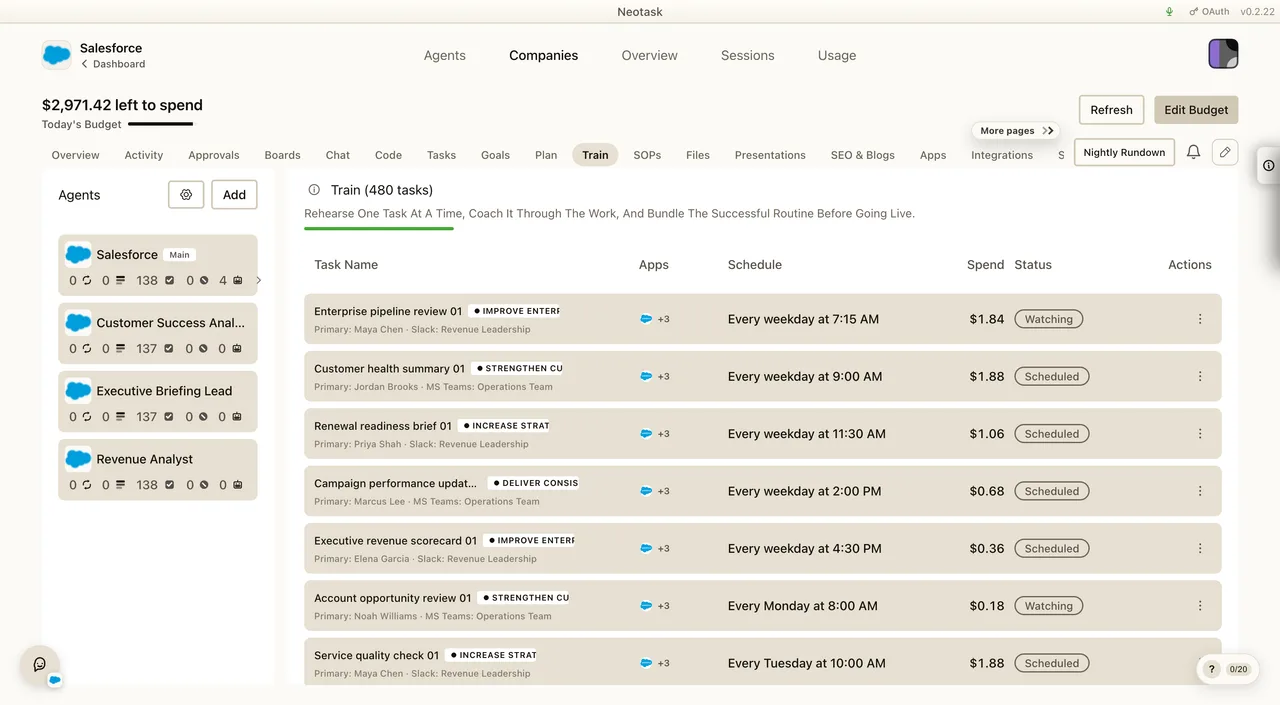
Training mode is the company dashboard surface for rehearsing one real task until it becomes reliable enough to trust live.
This guide explains what training mode does, what Neotask creates during training, and how to train a task efficiently without fighting the system.
What Training Mode Is
The Train tab is not a generic chatbot and it is not a throwaway sandbox.
It is a guided rehearsal lane for one specific company task.
That means a training session is always tied to:
- one company
- one plan task
- one task outcome you are trying to improve
Training mode exists so you can:
- start from a vague or imperfect task
- watch how it behaves
- coach it before it becomes scheduled or trusted
- review exactly what changed
- keep the improvements for the next training run and the later live run
The goal is not to “train the model.” The goal is to train the task’s reusable operating guidance.
Where To Find It
Open Auto, open a company, then click Train in the company tab bar.
The Train tab automatically loads the company’s current task list. You do not create a separate training-only task list.
That matters because training is supposed to improve the same real tasks that later run live.
What A Fresh Training Session Looks Like
A true first-time training session starts with no accepted bundle and no staged bundle for that task.
The flow should feel like this:
- open a real task in Train
- answer a short preflight
- run the baseline once
- answer any meaningful checkpoints during the run
- coach the task in the training input
- click Add to Training
- review the generated changes
- click Bundle It
- run Train Again until the result becomes consistent
You should not see a pile of training files before the first training pass has actually created them.
What The Main Training Surfaces Mean
The training workspace is built around three operator jobs:
Activity Feed
This is where you watch the task operate.
Use it to understand:
- what the task tried to do
- where it became uncertain
- what approvals it would have needed
- what the run produced
Training Input
This is where you coach the task.
Use it to tell the task:
- what was wrong with the last run
- what you want it to prioritize next time
- what must never be invented
- how you want tone, routing, approvals, or outputs handled
Bundle Review
This is where you review the training artifacts that Neotask generated from the run and your guidance.
This is the critical trust surface because it shows:
- what changed
- which files were added or revised
- what is only staged
- what is already accepted
The Three Main Training Phases
Preflight
Before the first meaningful run, Neotask asks short setup questions.
Use preflight to define:
- the desired outcome
- the required output shape
- the tone or style
- hard safety boundaries
- what to do when information is missing
Good preflight answers make the first run much closer to correct.
Checkpointed Execution
During the run, Neotask can pause at meaningful action boundaries.
That means it may stop to ask about:
- a planned outreach action
- a browser workflow branch
- a CRM writeback decision
- an approval-sensitive next step
- a situation where more than one path looks plausible
It should not pause for every tiny click.
The right mental model is:
- pause on decisions
- not on every micro-step
Post-Run Consolidation
After the run, you review what training generated.
This is where Add to Training and Bundle It matter.
That final review is mandatory because the system is supposed to show you the exact guidance it wants to keep.
What Add To Training Does
Add to Training stages a working bundle for that task.
That working bundle is the system’s current proposal for how the task should improve.
It is not fully trusted yet. It is the staged version you review before accepting it.
After you click Add to Training, you should expect to see:
- newly created or updated guidance files
- a working summary
- a working diff
- a clear separation between staged changes and already accepted guidance
What Bundle It Does
Bundle It promotes the current working bundle into the accepted bundle.
That accepted bundle becomes the task’s active training guidance for:
- the next Train Again run
- the later live version of the same task
This is the point where training stops being a draft and starts becoming durable task behavior.
What Files Training Creates
Training mode works by creating reusable guidance files for the task.
The exact file set can grow over time, but the core training bundle typically includes these kinds of files:
Routine
The routine is the task’s operating playbook.
It usually captures:
- the task purpose
- the exact outcome contract
- the order of sections or steps
- execution rules
- approval wording
- cadence or operating logic
Output Template
The output template defines what the finished answer should look like.
This is where Neotask can lock in things like:
- required headings
- section order
- field structure
- placeholder format
QA Checklist
The QA checklist is the “before returning this result, verify these things” layer.
This is useful for making a task reliably check itself before it finishes.
Typical examples:
- required headings are present
- the approval sentence is exact
- no fake CRM fields were invented
- the response stayed concise
Placeholders
Placeholder files tell the task what to do when real data is missing.
This prevents the task from making up details just to complete the shape.
Examples include placeholder tokens for:
- names
- emails
- owners
- dates
- stage IDs
Additional Guidance Files
Depending on the task, Neotask can also create or evolve other bundle files later.
Examples include:
- memory notes
- browser-specific guidance
- supporting rule sheets
- future task-specific helper artifacts
The important operator rule is simple:
you are reviewing reusable task guidance, not just one answer transcript.
Where This Information Comes From
This is the point that most users need clarified at least once:
the long training documents you see are usually not something the user typed by hand.
They come from a combination of:
- the original task definition
- your preflight answers
- your checkpoint answers
- your coaching messages
- the task’s baseline run
- the model’s attempt to turn all of that into reusable guidance
So if you open a trained task and see a long routine or checklist, that does not mean someone manually authored every line in the training pane. It means training has already materialized those instructions into task files.
Working vs Accepted Bundles
Training mode keeps two bundle states separate on purpose.
Working Bundle
The working bundle is the currently staged proposal.
Think of it as:
- “what this next revision would keep if I accepted it”
Accepted Bundle
The accepted bundle is the currently trusted task guidance.
Think of it as:
- “what the next rerun and live task already use”
If you are not sure what changed recently, compare working against accepted before bundling.
How Training Improves The Next Run
Training improves a task because the accepted bundle is loaded again on the next run.
That means the next training run does not start from zero. It starts with the accepted routine, template, checklist, placeholders, and other task-linked guidance already attached to that task.
That is why a good training loop should look like:
- rough first run
- clearer second run
- consistent later runs
If a task keeps behaving exactly like the baseline after bundling, training is not actually being applied correctly.
What Is Simulated In Training
Training mode is supposed to be a rehearsal lane.
That means the task can still surface:
- intended actions
- approval gates
- planned outreach
- planned writebacks
- browser steps
But the user experience should still feel like review and guidance first, not uncontrolled live execution.
The operator should be able to see:
- what would have happened
- what needs approval
- what still needs clarification
before trusting the task live.
The Best Way To Train A Task
The best training runs start from a task that is slightly vague but has a clear business outcome.
Good examples:
- re-engage stale qualified leads
- prepare a renewal follow-up package
- review inbound support escalations and prepare a response plan
This is the recommended training pattern:
- define the desired business outcome clearly
- answer preflight in concrete terms
- let the first run happen without overcorrecting too early
- fix the biggest structural mistakes first
- stage the bundle
- review the files and diffs
- bundle only when the guidance looks durable
- rerun several times to verify consistency
Do not judge training by whether one lucky run looked good. Judge it by whether repeated reruns keep producing the right structure and decisions.
Best Practices
- Start with one task, not ten at once.
- Train for one clear business outcome per session.
- Answer preflight in concrete business language, not vague wishes.
- Use checkpoints to explain decisions, priorities, and exceptions.
- Review the diff before bundling anything.
- Bundle only when the guidance looks reusable, not just impressive.
- Re-run the task several times after bundling.
- Treat training as a path to stable live execution, not as a separate permanent operating mode.
What To Avoid
- Do not dump random text into training just to “give it more data.”
- Do not bundle a revision you did not actually read.
- Do not overfit to one narrow example if the live task has to handle broader cases.
- Do not let the task invent names, dates, IDs, or CRM values just because the template looks empty.
- Do not confuse the activity feed with the accepted task guidance. The accepted bundle is what the next run keeps.
How To Tell Training Is Working
You should see this pattern:
- the first run is incomplete, weak, or inconsistent
- your guidance creates a meaningful working bundle
- the files and diffs reflect the improvements you actually asked for
- the accepted bundle becomes the new baseline
- repeated reruns stay in the improved shape
That is the strongest sign that the task is truly learning the right behavior at the task level.
How Training Relates To The Rest Of Auto
Training mode is not separate from the rest of the company dashboard. It works with the same company context.
Training is closely related to:
- Plan, because you are training real plan tasks
- Tasks, because task settings still matter
- Approvals, because simulated approvals and live approvals need to line up
- SOPs, because company guidance still shapes the task
- Apps, Integrations, Channels, and Employees, because the task still depends on the company’s real operating context
Use training when the task exists but is not trustworthy enough yet. Use the live task lane only after training proves the task is stable.