Models & Providers
Choose the model Neotask uses
Neotask can use hosted models from supported providers or local models running on your computer. You can change the default model from Settings > Models.
You can also choose a different model for an agent or autonomous company. The selected provider and model appear with the run so you can see what handled the work.
Hosted models
Open Settings > Models to browse the providers and models available to your account.
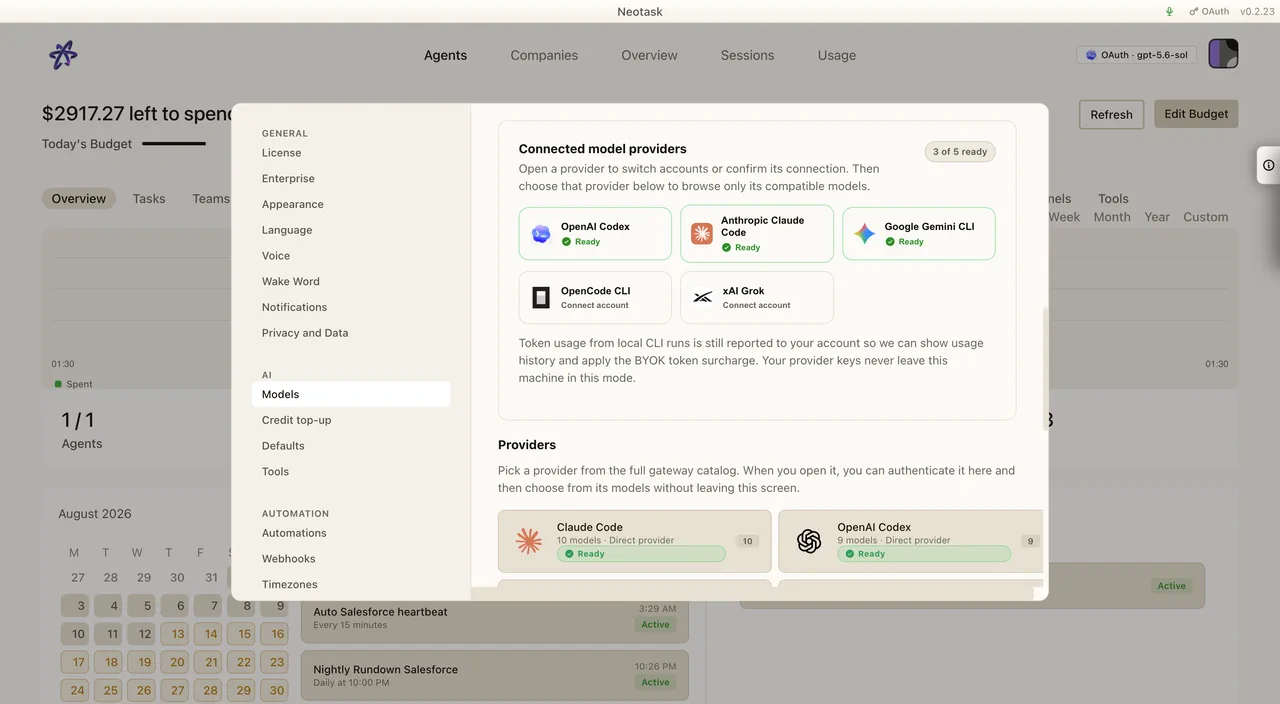
Neotask supports two ways to connect hosted models:
- Credits Mode uses your Neotask credit balance. Supported hosted providers do not require a local API key.
- Own API Keys connects a provider account that you manage. Provider usage is billed through that account. Neotask plan and platform charges still apply.
The available catalog can change as providers release models or retire older versions. The model picker in Settings is the current list for your account.
Connect a model source
- Open Settings.
- Select Models.
- Choose CLI & OAuth, Own API Keys, or Neotask Credits.
- Select a provider and complete the connection shown in the app.
- Return to Models and confirm the provider shows as ready.
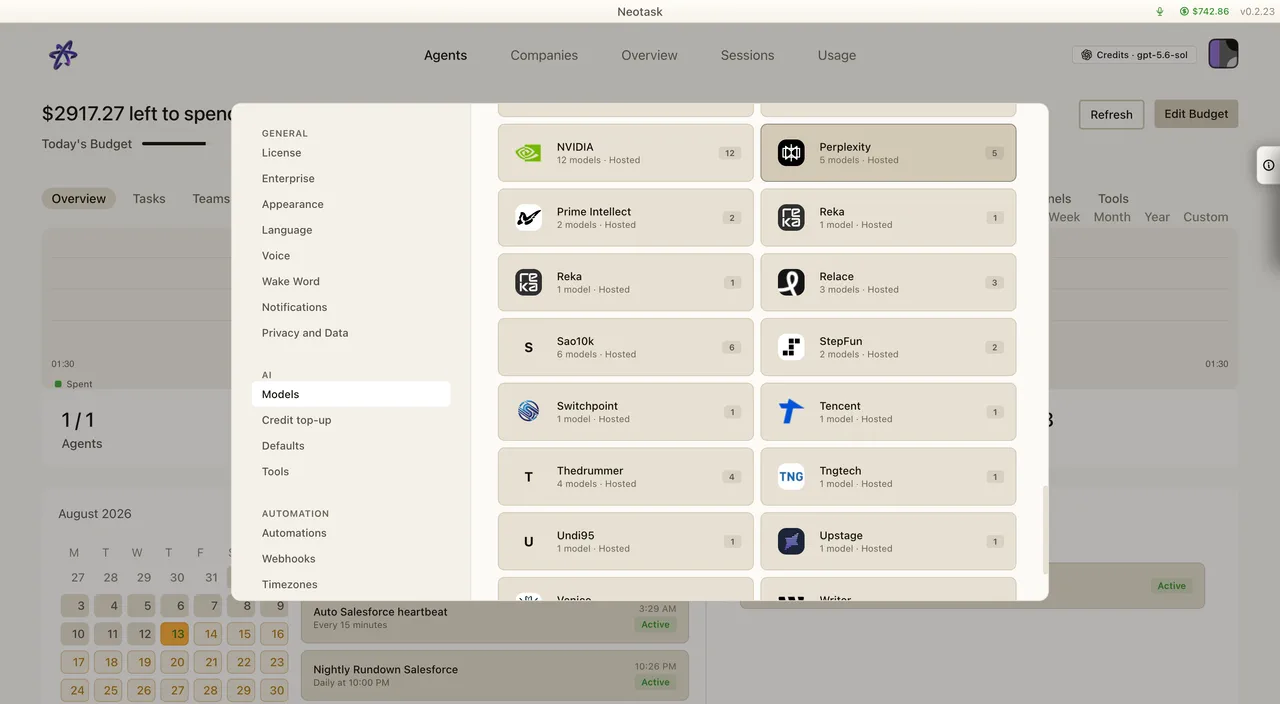
The catalog shown in Neotask Credits is the source of truth for the providers and models available through your credit balance.
Local models
Local models run on this computer, or on another computer on your local network that you add as a custom server. In Settings > Models, Local models is its own choice, the fourth card beside Credits, Own API Keys and OAuth; it is not part of Own API Keys. Choosing it shows the Local models page, which detects Ollama, LM Studio, Jan, Docker Model Runner and custom OpenAI-compatible servers running on this computer and lists the models each supported local model source offers. To use a server on another computer, select Add a custom server and confirm that it is on your local network. Only use a computer you trust: your prompts are sent to it.
Choosing Local models makes a connected local model your default on this computer and leaves your hosted mode (Credits, Own API Keys or OAuth) as it was. Choosing a hosted card again returns to your hosted default. Local models also appear in every model picker with a Local label, whichever card is chosen, so you can choose one for an agent, team or task.
Local models are always free. Neotask never bills them, and they never count against your plan limits. Quality and speed depend on this computer. Hosted models stay available.
Set up a local model
- Open Settings > Models and choose the Local models card.
- If no local model is connected yet, setup opens. Otherwise select Set up a local model.
- Follow the steps shown. Neotask installs Ollama if it is missing and downloads a Qwen model sized to this computer's memory.
- Neotask checks that the model can call tools and use a context of at least 32K tokens before it connects the model.
- Select the model as your default or for the work where you want to use it.
The local model source must stay running while Neotask uses its models.
Set the default model
- Open Settings > Models.
- Choose a provider.
- Select a model.
- Set it as the default.
The default handles work that has no separate model assignment.
Use your own provider key
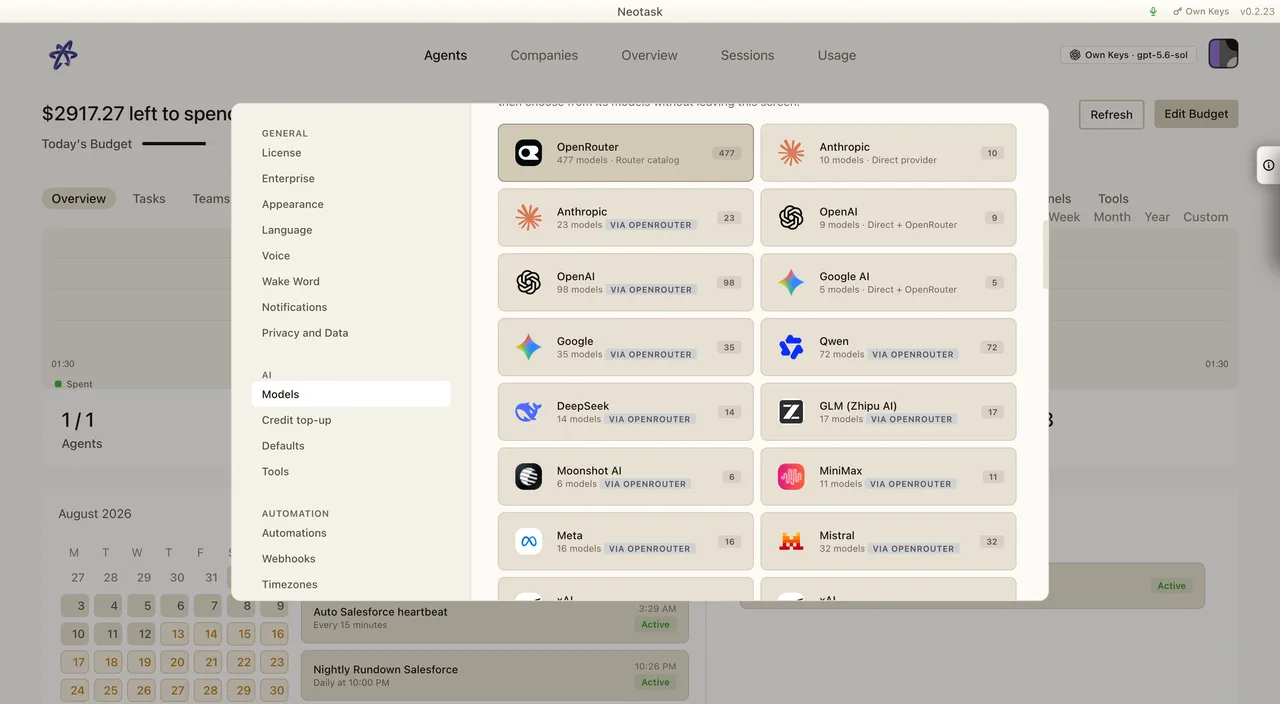
Open Own API Keys to see the current provider catalog. Select a provider, enter the requested credential, save it, and confirm the provider reports a ready state.
Assign a model to specific work
You can choose a different model for an agent or autonomous company. This lets you keep one default while using another model for selected work.
Open the model assignment control for the agent or company. Choose a provider and model. Save the assignment. New runs from that agent or company will use the selected model.
Smart Model Routing
Smart Model Routing can choose from the models available to your account. Your provider connections and model settings determine the choices it can use.
Check which model ran
Open the active run or session history. The run record shows the provider and model used for that session. Usage and cost remain attached to the session when those details are available.