Boards & Live Artifacts
Open And Review A Board
- Open Boards.
- Select an existing artifact or start a new board from chat.
- Review the live sources and values before publishing.
- Use the artifact controls to save, refresh, publish, export, or restore a version.
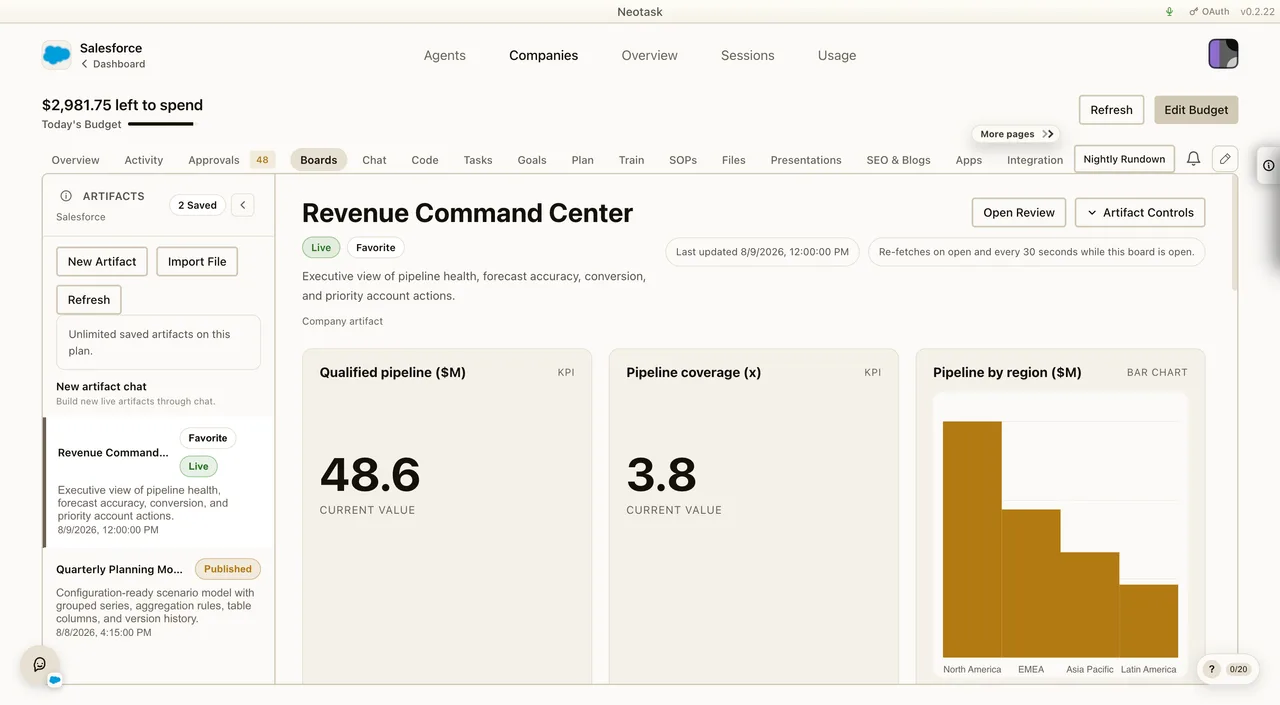
Boards are live artifact pages that you can build through chat, refine in a draft editor, and keep as reusable operating surfaces for an agent or a company.
This guide explains what boards are, where to find them, how the chat-to-artifact flow works, what data sources they can use, and how to turn a rough idea into a saved live page that stays useful.
What Boards Are
A board is not just a single chart.
It is a full live page that can contain one or more widgets such as:
- KPI blocks
- line charts
- area charts
- multi-line charts
- bar charts
- tables
Think of boards as custom live dashboards for the exact question you want answered.
Good board use cases include:
- revenue health for one company
- support backlog by owner and priority
- operating exceptions across connected tools
- calendar plus file-change activity in one place
- a personal agent dashboard for one workflow
Boards are meant to move beyond the default overview widgets when you need a more specific operating surface.
Where To Find Boards
Boards exist in two places:
Company Boards
Open Auto, open a company, then click Boards.
Use company boards when the artifact should use company-scoped context such as:
- connected company apps
- company files
- company SOPs
- company tasks and operating context
Agent Boards
Open Agents, open one agent, then click Boards.
Use agent boards when the artifact should use agent-scoped context such as:
- the agent workspace
- agent memory
- agent-attached tools and MCP connections
- agent-specific files
The board system is the same in both places. The main difference is the scope of the data it can reach.
What A Fresh Board Session Looks Like
A fresh board session starts in the New artifact chat.
The expected flow is:
- describe the live page you want
- let Neotask create the latest artifact candidate in chat
- apply that result into a draft
- review the live source wiring
- preview the board
- save it
- publish a version when it is worth keeping
- activate it live when the wiring is ready
The important mental model is:
- chat creates the candidate
- the draft editor turns that candidate into a structured board
- saved versions make it durable
- live activation makes it an actively refreshing artifact
How The Chat Composer Works
The composer is the fastest way to create a board.
It is built for natural requests such as:
- “Make a live Stripe revenue artifact with KPIs, trend lines, and recent payments.”
- “Build an artifact that combines Google Calendar activity with company file changes.”
- “Create a live operations page with charts, tables, and exceptions from my connected data.”
The composer can use:
- connected apps
- MCP tools
- company files
- workspace files
- SOPs
- memory
- internal company context
You can also:
- attach files
- attach connected integrations into the prompt
- keep iterating in the same chat until the latest result is worth promoting into a draft
When the chat has produced a usable candidate, the composer shows that the latest artifact candidate is ready. That is the moment to move it into the draft lane and review it as a real board.
The Difference Between Chat And The Saved Artifact
This is the part most users need clarified:
the chat is not the artifact itself.
The chat is the creation lane.
The saved artifact is the structured board record that can be:
- previewed
- validated
- saved
- published
- activated live
- favorited
- exported
- restored to older versions
If you only stay in chat, you have not actually saved the board yet.
What Data Sources A Board Can Use
Boards can pull from four main source types.
Connected App / MCP Tool Sources
Use this when a widget should fetch live data from a connected system.
Examples:
- Stripe payments
- CRM records
- calendar events
- issue trackers
- project tools
This is the most common source type for truly live artifacts.
Company File Search
Use this when the board should search through company files and turn those results into a live widget.
Examples:
- recent reports
- uploaded documents
- generated website content
- operating exports
Workspace Files
Use this when the board should read files from the agent workspace rather than company-managed files.
This is especially useful for agent-scoped boards.
Manual Rows
Use this when you want to:
- prototype the layout
- mock up a board before wiring live data
- create a static widget intentionally
Manual rows are the easiest place to start when you want to shape the page first and connect live sources later.
What Live Source Review Means
Open the board grid to check the values and charts that were produced from the selected sources.
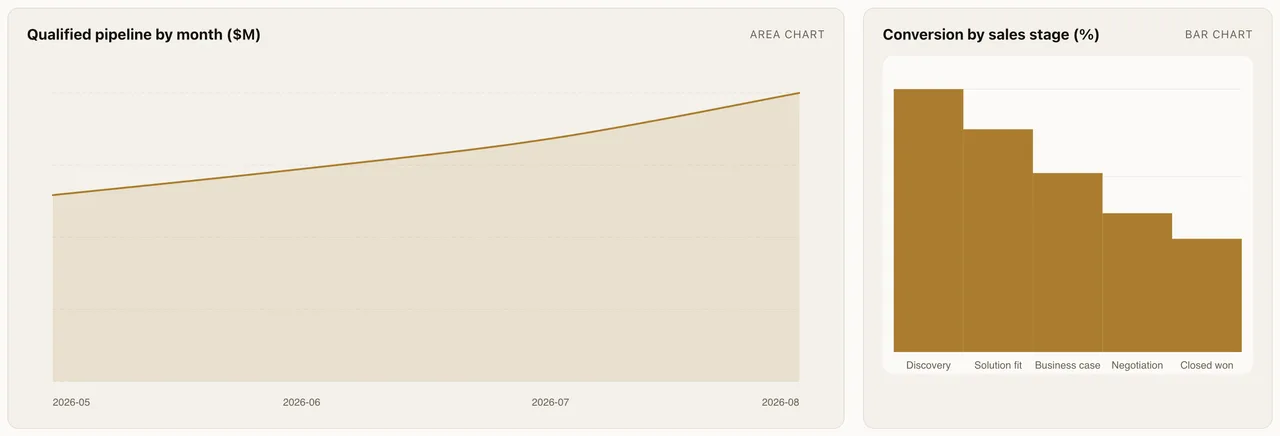
Boards that rely on live data have to be checked before they should be trusted.
The Live Source Review panel exists for that reason.
It tells you whether the current board still has issues such as:
- missing connector bindings
- missing authentication
- missing tools
- blocked connector policy
- imported board bindings that still need to be reviewed
This matters because a saved board is only as reliable as the data sources it can actually resolve.
You should treat Live Source Review as the final reality check before publishing or activating a board.
The Board Lifecycle
Boards move through three main states.
Draft
Draft is the editable working state.
Use draft when you are still:
- shaping the layout
- fixing data wiring
- refining descriptions
- adjusting widgets
Published
Published means you have kept a durable saved version.
This is useful when you want:
- a stable checkpoint
- a version you can restore later
- a clear review milestone before going live
Publishing creates version history.
Live
Live means the published version is now the active live artifact.
A live board:
- re-fetches when you open it
- keeps re-fetching while it is open
- behaves like an active operating surface rather than a one-time static draft
That is why live boards are the right end state for dashboards you want to keep using regularly.
Refresh Behavior
Boards do not all refresh the same way.
Draft Or Saved-But-Not-Live Boards
These re-fetch on open and when you manually refresh them.
Live Boards
These re-fetch on open and continue refreshing while the board is open.
So if the board is meant to stay current while you monitor it, activating it live is the right step.
Save, Publish, And Activate Live
These three actions do different jobs.
Save Artifact
Save keeps the current board as a durable artifact record.
Use save when:
- the board is worth keeping
- you want it in the artifact list
- you want to come back and keep refining it later
Publish
Publish creates a real saved version.
Use publish when:
- the board has reached a stable milestone
- you want a version you can restore later
- you want a controlled checkpoint before making it live
Activate Live
Activate Live makes the published version the live artifact.
Use this only when:
- the data wiring is ready
- the validation issues are resolved
- the board is trustworthy enough to operate as a real live page
If a board still has binding or connector issues, it should stay in draft or published review, not live.
Versions And Restore
Boards keep version history after publish.
That means you can:
- see the version list
- understand which version is current
- understand which version is published
- understand which version is live
- restore an older version if a newer one made the board worse
This is important because boards are operating surfaces. You do not want to lose a working version just because a later experiment was wrong.
Import, Export Package, And Export PDF
Boards support more than just in-place editing.
Import File
Use import when you want to bring in a board draft from a package file.
This is useful for:
- moving a board definition between environments
- sharing a starting point
- restoring a packaged draft into the editor
Export Package
Use export package when you want the board definition itself.
This is the right choice when the goal is:
- reuse
- transfer
- backup
- import into another environment later
Export PDF
Use export PDF when you want a readable snapshot of the current rendered result.
This is useful for:
- sharing the current view
- reviews
- reporting
- archiving a static representation of the artifact
Plan Limits And Saving Rules
Drafting and previewing are more flexible than saving.
Current save limits are:
- Free: no saved artifacts
- Pro: 5 saved artifacts
- Individual: 5 saved artifacts
- Business: 10 saved artifacts
- Enterprise: unlimited saved artifacts
That means a user can still explore the composer and preview ideas before committing to a saved artifact, but saving is plan-limited.
What Makes A Good Prompt
The best boards start from a business question, not a chart type.
Good prompt ingredients:
- what the page should help you decide
- which systems it should use
- what metrics or signals matter
- what time window matters
- what exceptions or anomalies should stand out
- what shape the page should take
Good example:
“Build a live revenue health artifact for this company using Stripe and our company files. I want a KPI row, a weekly trend chart, recent payments, failed payments, and a short exceptions table.”
Weak example:
“Make a chart.”
The second prompt is too vague. The first tells Neotask what the artifact is for and what should appear on the page.
Prompt Examples You Can Reuse
Revenue And Finance
- “Build a live Stripe revenue artifact with KPIs, trend lines, and recent payments.”
- “Create a finance board that shows daily revenue, failed charges, refunds, and the five biggest anomalies this week.”
- “Make a cash-collection artifact with open invoices, overdue counts, and recent collections.”
Operations
- “Build a live operations artifact for this company with task volume, exceptions, and recent approvals.”
- “Create an operations page that combines recent company activity with file changes and open blockers.”
- “Make a board that shows throughput, pending approvals, and anything stuck for more than 24 hours.”
Sales And CRM
- “Create a pipeline health artifact with stage counts, stalled deals, and top owners by open revenue.”
- “Build a board for stale qualified leads that shows who has gone cold, how long they have been cold, and who owns them.”
- “Make a renewal board with upcoming renewals, risk signals, and accounts needing manual outreach.”
Support
- “Build a support board with open ticket volume, oldest unresolved items, SLA risk, and recent escalations.”
- “Create a support artifact that groups urgent tickets by owner and highlights backlog spikes.”
Calendar And Activity
- “Build an artifact that combines Google Calendar activity with company file changes.”
- “Create a live weekly planning page with meetings, deadlines, and recent operational changes in one board.”
Content And Marketing
- “Make a content operations board with blog production status, pending approvals, recent headlines, and article throughput.”
- “Build a marketing artifact that shows campaign launch dates, recent content output, and exceptions that need review.”
File-Driven Or Internal Boards
- “Create a board from company files that shows the newest uploaded reports, their dates, and the biggest changes.”
- “Make a live workspace artifact that tracks the most recent generated files and groups them by folder.”
Personal Agent Boards
- “Build a personal research board for this agent with recent findings, source files, and next actions.”
- “Create an engineering board for this agent with repo activity, pending file changes, and the current working set.”
Best Practices
- Ask for a page, not a single chart.
- Start with the decision the board should support.
- Name the systems it should use.
- Say what should stand out, not just what should be displayed.
- Use manual rows first if you want to prototype the shape before wiring live data.
- Review Live Source Review before publishing or activating.
- Save when the board is worth keeping, not just because the preview looked interesting once.
- Publish when you want a durable version checkpoint.
- Activate live only when the board is actually ready to stay connected to live sources.
- Use the advanced editor for cleanup and structural repair, not as the default creation path.
What To Avoid
- Do not describe only a chart type without saying what business question the board should answer.
- Do not activate a board live before its connector or binding issues are resolved.
- Do not confuse the chat result with the saved artifact.
- Do not treat one good preview as proof that a live board is reliable.
- Do not ignore imported binding warnings after package import.
How To Tell A Board Is Working Well
You should see this pattern:
- the chat creates a strong candidate
- the draft preview renders the right widgets
- Live Source Review does not show blocking issues
- the saved artifact is easy to reopen and understand
- the published version is stable enough to keep
- the live board refreshes with useful current data while it is open
That is when a board stops being a demo and becomes a real operating surface.
When To Use Boards Instead Of Other Surfaces
Use Boards when you need a custom page for one decision or workflow.
Use Overview when the default company dashboard already answers the question.
Use Files when the real task is file browsing or file management, not a dashboard.
Use Plan or Tasks when the real job is changing the work itself, not visualizing the state of that work.
Use Train when the real job is improving task behavior rather than building a live artifact page.