Auto, Autonomous Companies
See The Operating Loop
The company workspace keeps the goal, plan, schedule, active run, and result connected. Use these screens to move from company context to the work happening now.
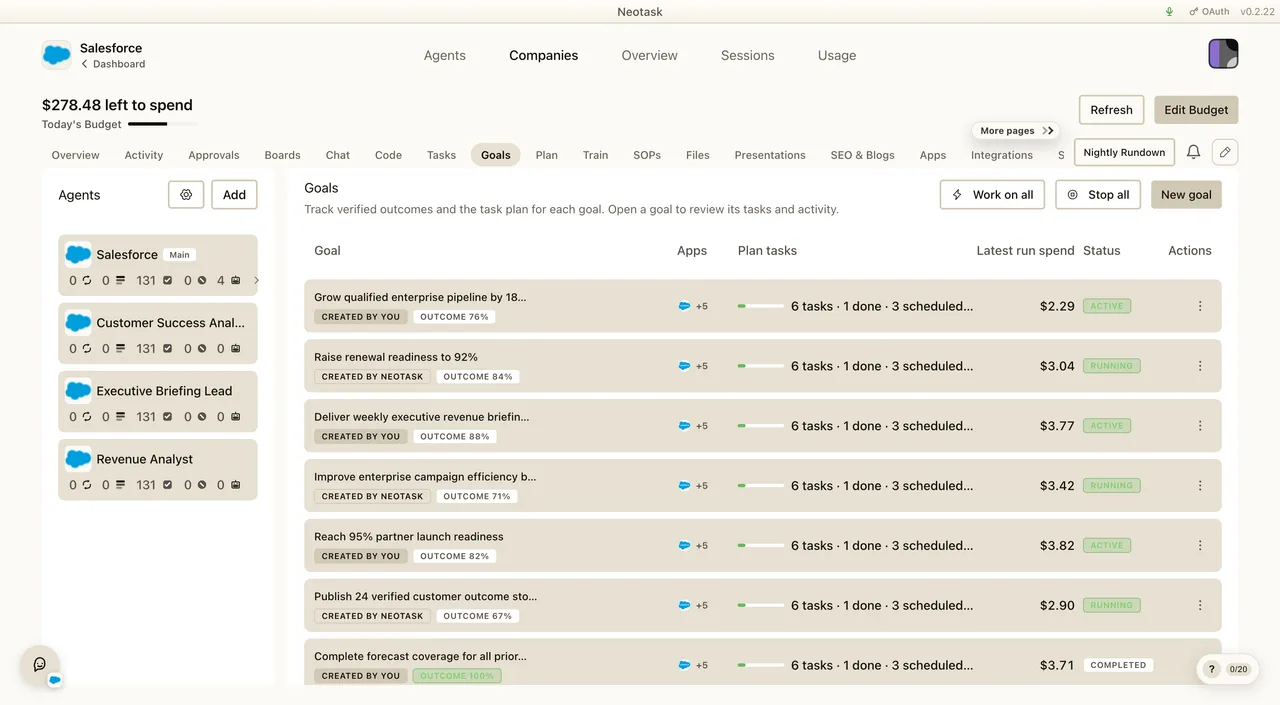
- Open Goals to review active outcomes.
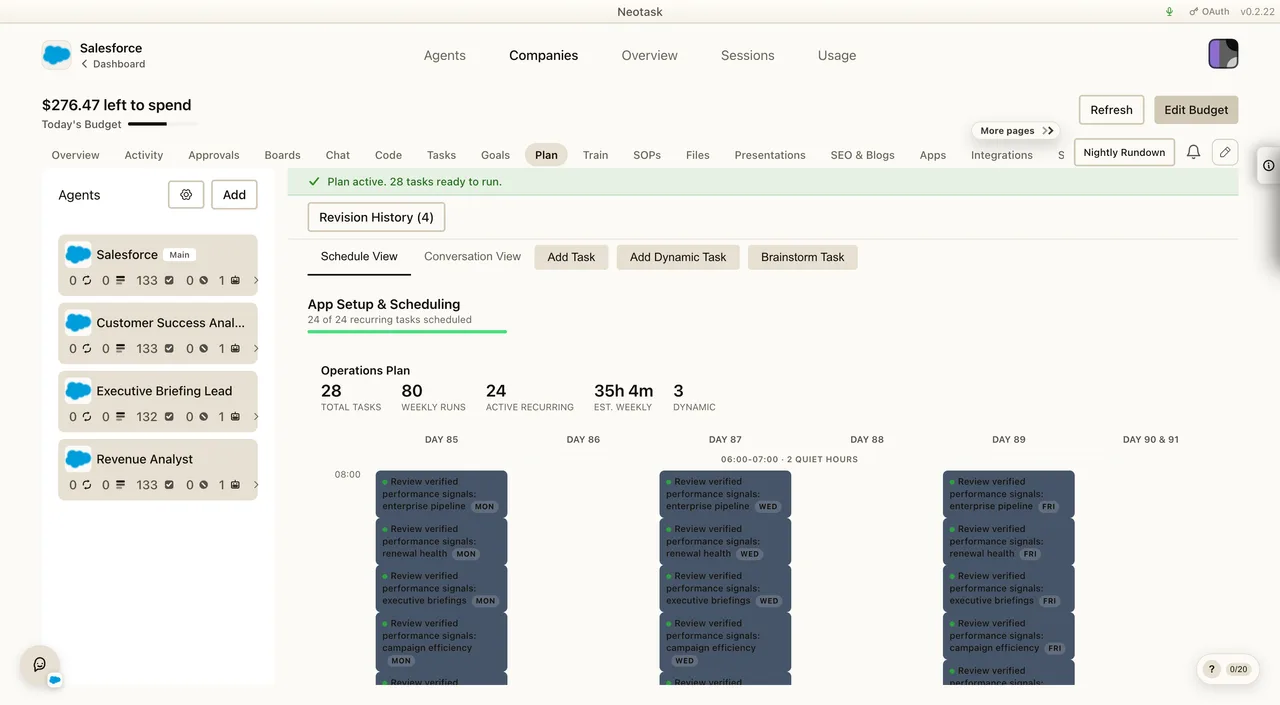
- Open Plan to inspect the generated work and schedule.
- Open Overview for live work and completed results.
- Open a run to inspect its source, apps, and decisions.
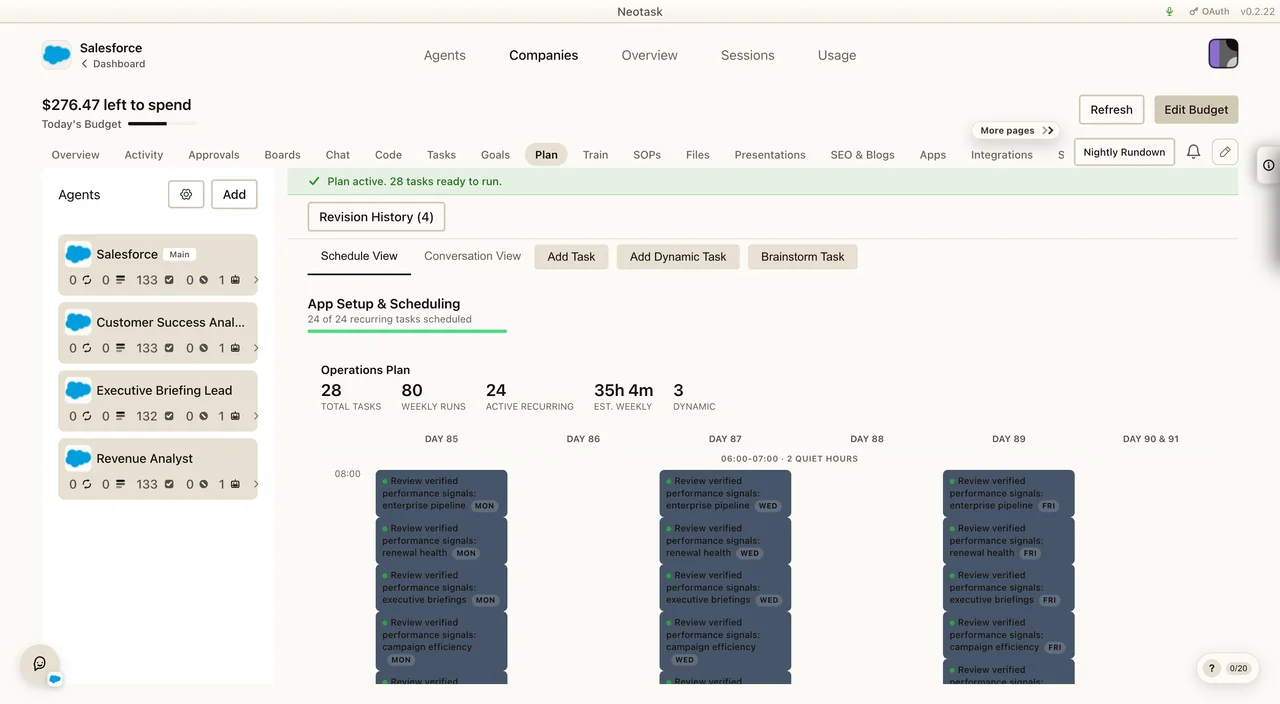
Auto gives you a company workspace inside Neotask where planning, approvals, files, integrations, content work, routing, and ongoing autonomous execution all live together.
This page is the starting point. If you want the full walkthroughs, use the related docs at the bottom of this page.
What Auto Is
An Auto company workspace lets you:
- onboard a real business or a new idea
- generate and refine a company plan
- rehearse one task at a time in Train before trusting it live
- connect apps and Google Workspace at the company level
- review approvals before sensitive work runs
- upload SOPs and reference material
- run recurring company tasks on a heartbeat
- manage company chat, files, channels, employees, memory, SEO, and usage in one place
Auto is designed for company operations, not just personal task automation.
Who Can Use Auto
Company workspaces require a plan that includes company access.
In the current product, that means:
- Business for one active company workspace
- Enterprise for larger company coverage and additional expansion
If your current plan does not include company workspaces, Neotask shows an upgrade flow instead of letting you create the company.
For current plan details, see Billing & Plans.
Where Auto Lives
Open the desktop app and click Auto in the main navigation.
From there you can:
- create a new company
- reopen an existing company
- return to the company dashboard
- move from the dashboard into one company’s full detail view
The Core Auto Flow
Most companies go through the same broad lifecycle:
- Create the company Start from an existing website, a manual description, or an AI brainstorm.
- Build the profile Neotask fills in the company profile, business context, and initial operating direction.
- Connect knowledge and tools Add SOPs, choose apps, and connect Google Workspace where needed.
- Set autonomy and heartbeat Decide how much freedom the company has and how often it should check for work.
- Review the generated plan Approve the starting plan, then keep refining it from the company dashboard.
- Complete setup in the company dashboard Finalize tasks, integrations, channels, approvals, and any remaining setup items.
- Run the company Use the company controls to start, pause, resume, or trigger the company heartbeat.
The Goals view connects active outcomes to the work created for them.
The Plan view records the generated work before it reaches the schedule.
What You Can Manage After Setup
Once a company exists, the company dashboard becomes the main operating surface.
Open a live run to see its current step, connected apps, and progress.
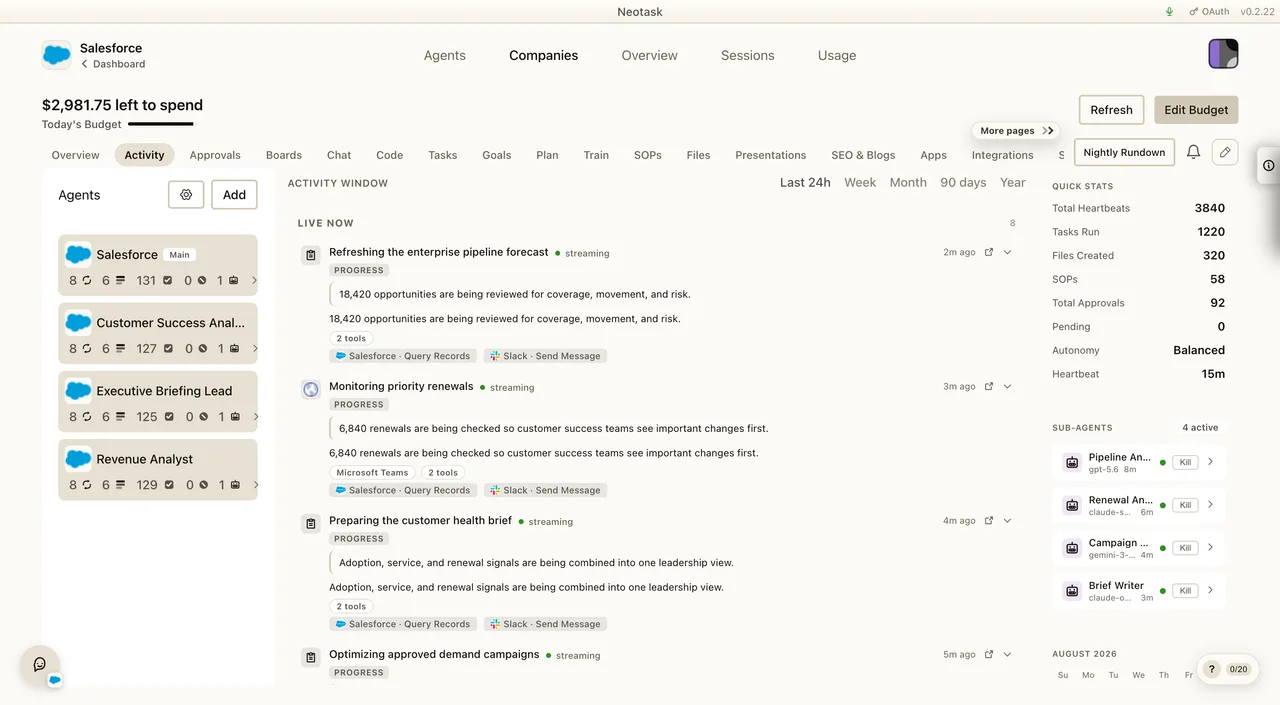
Completed runs keep the result with the work that produced it.
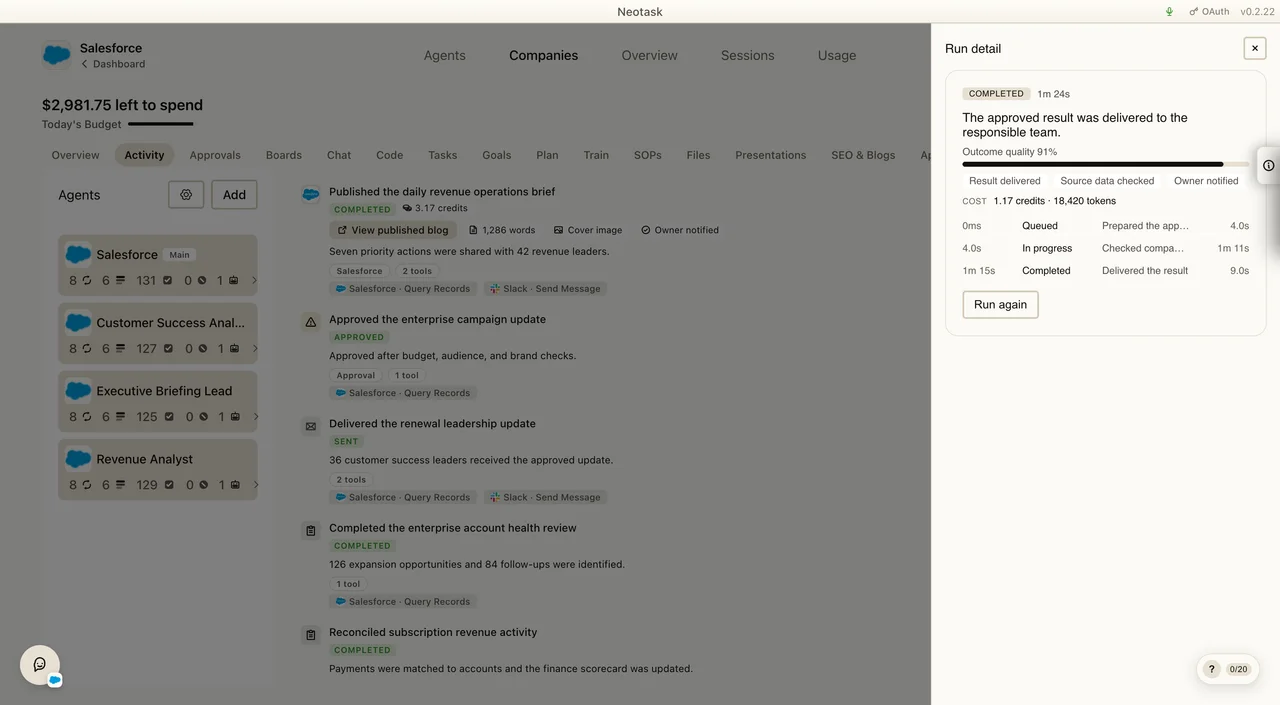
The current dashboard includes these tab areas:
- Overview
- Activity
- Chat
- SOPs
- Approvals
- Plan
- Tasks
- Train
- Files
- Boards
- SEO & Blogs
- Apps
- Employees
- Profile
- Integrations
- Channels
- Skills
- Memory
- Usage
- Settings
Outside the tab bar, the same company view also includes:
- a left-side controls rail
- quick stats
- a mini calendar
- a Nightly Rundown action
What Auto Is Best At
Auto works best when you want one place to manage:
- recurring operational work
- approvals and safety controls
- company-scoped app access
- company-scoped Google access
- task scheduling and task refinement
- reference files and generated files
- SEO and content operations
- employee and channel routing
- usage visibility and operational status