Automation & Scheduling
Automate your Neotask agents with scheduled jobs, flexible delivery modes, and powerful session targeting.
Scheduled Jobs (Cron)
Scheduled jobs let you automate agent actions on a recurring or one-time schedule. Define when a job runs, what it does, and where the results go.
Free-plan users cannot create, edit, run, skip, or delete their own scheduled jobs, cron jobs, reminders, or automations. They can use chat, boards, coding workflows, and connected apps within the Free message quota, but autonomous scheduling requires at least an Individual subscription.
The only Free-plan automation exception is the system-managed daily memory learning job named Learn from Daily Activities. It runs every day at 3:00 AM to maintain memory across agent and company workspaces. It is not a user-created automation.
Open Agents, select an agent, and choose Automations to see scheduled work and its current state.
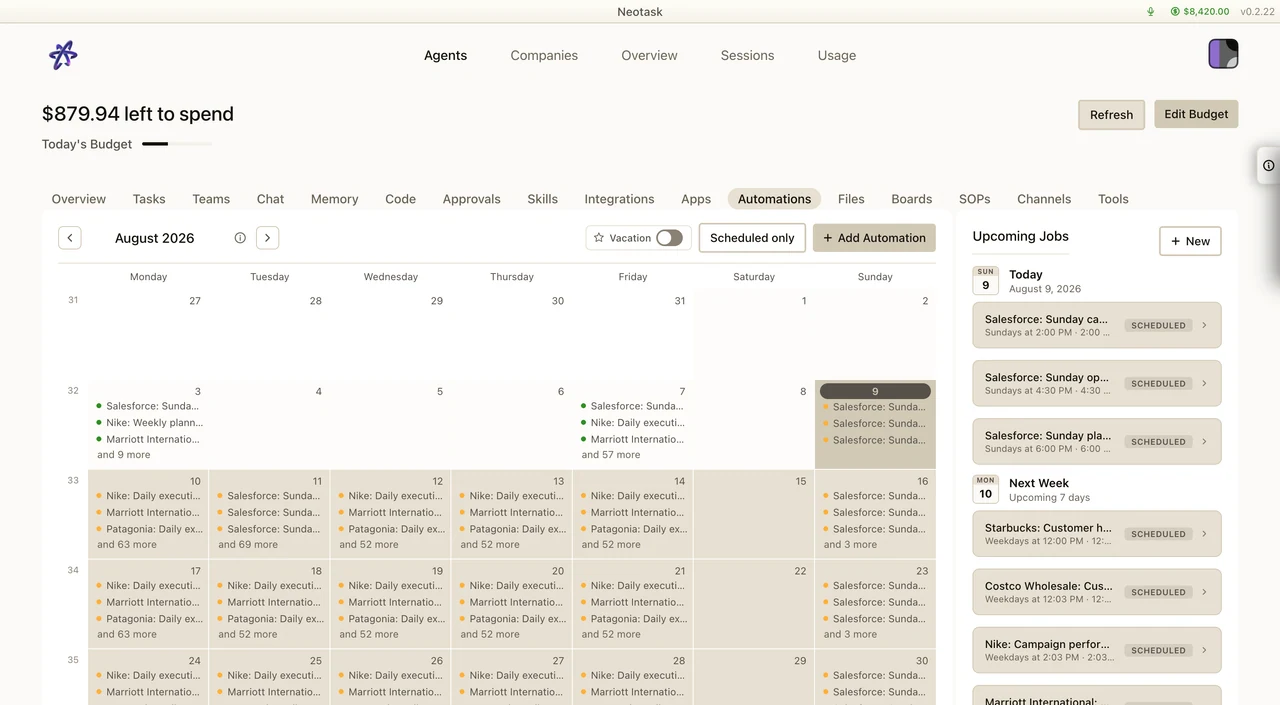
Schedule Types
| Type | Format | Example |
|---|---|---|
| At | Fixed datetime | Run once at Feb 28, 2026 9:00 AM |
| Every | Interval | Run every 30 minutes |
| Cron | Standard cron expression | 0 9 * * 1-5 (weekdays at 9 AM) |
Timezone Support
- All schedules respect your configured timezone
- Cron expressions support a timezone parameter
- Stagger option available to offset execution times across multiple jobs
Job Payloads
Each scheduled job executes a payload -- the action the agent performs when the job fires.
| Type | Description |
|---|---|
| System Event | Trigger an arbitrary event (text-based) |
| Agent Turn | Send a message to an agent with an optional model override |
Delivery Modes
Control where the results of a scheduled job are sent after execution.
| Mode | Description |
|---|---|
| None | Internal execution only -- no output is delivered |
| Announce | Broadcast the result to a channel |
| Webhook | POST the result to an external URL |
Session Targeting
Choose how conversation context is handled for each scheduled job.
| Mode | Description |
|---|---|
| Main | Shared session -- cumulative conversation history carries over between runs |
| Isolated | Fresh session per run -- clean slate each time the job executes |
Job Operations
Neotask gives you full control over the lifecycle of your scheduled jobs:
- Create, update, and delete jobs at any time
- Enable or disable a job without deleting it
- Force-run immediately to bypass the schedule and execute on demand
- Skip once to delay a single execution, then automatically resume the normal schedule
- View full run history including status, duration, and errors for each execution
Interrupted Runs
A scheduled run can be cut short by an app update, an operating-system restart, a crash, or a power loss. Neotask does not lose that run.
Continue work after restarts decides what happens next. It is on by default.
- Open Settings.
- Select Automations.
- Turn Continue work after restarts on or off.
With it on, an interrupted run resumes after the restart, a bounded number of times. Work that already finished is never repeated, and blog posts and emails are protected against duplicates if a run is retried.
With it off, the run is recorded as Interrupted by restart in the activity feed and waits for you to run it again.
Runs that are waiting for your approval are never resumed automatically, and neither are runs that failed for a reason other than the restart.
The same Automations screen has Launch Neotask at login, which is off by default. Scheduled tasks keep running with the app closed, but company planning, new task creation, and the nightly and weekly reviews run only while the app is open. Turn this on so they continue right after a restart.
For the full behavior, see Continue Work After Restarts.
Example Automations
Here are some common ways teams use Neotask scheduled jobs:
Morning Briefing
- Schedule: Daily at 8:00 AM
- What it does: Agent summarizes the latest news and sends a digest to Slack
Weekly Report
- Schedule: Every Monday
- What it does: Agent compiles analytics data and emails a summary to the team
Data Sync
- Schedule: Every 4 hours
- What it does: Agent checks external APIs and updates the dashboard with fresh data
Health Check
- Schedule: Every 15 minutes
- What it does: Agent monitors services and sends alerts on failure