Support Channel Routing And Approvals
Verify Connection Before Routing
- Open Channels.
- Run the connection tests.
- Open access settings and confirm who can message the agent.
- Open Approvals when delivery is waiting on a person.
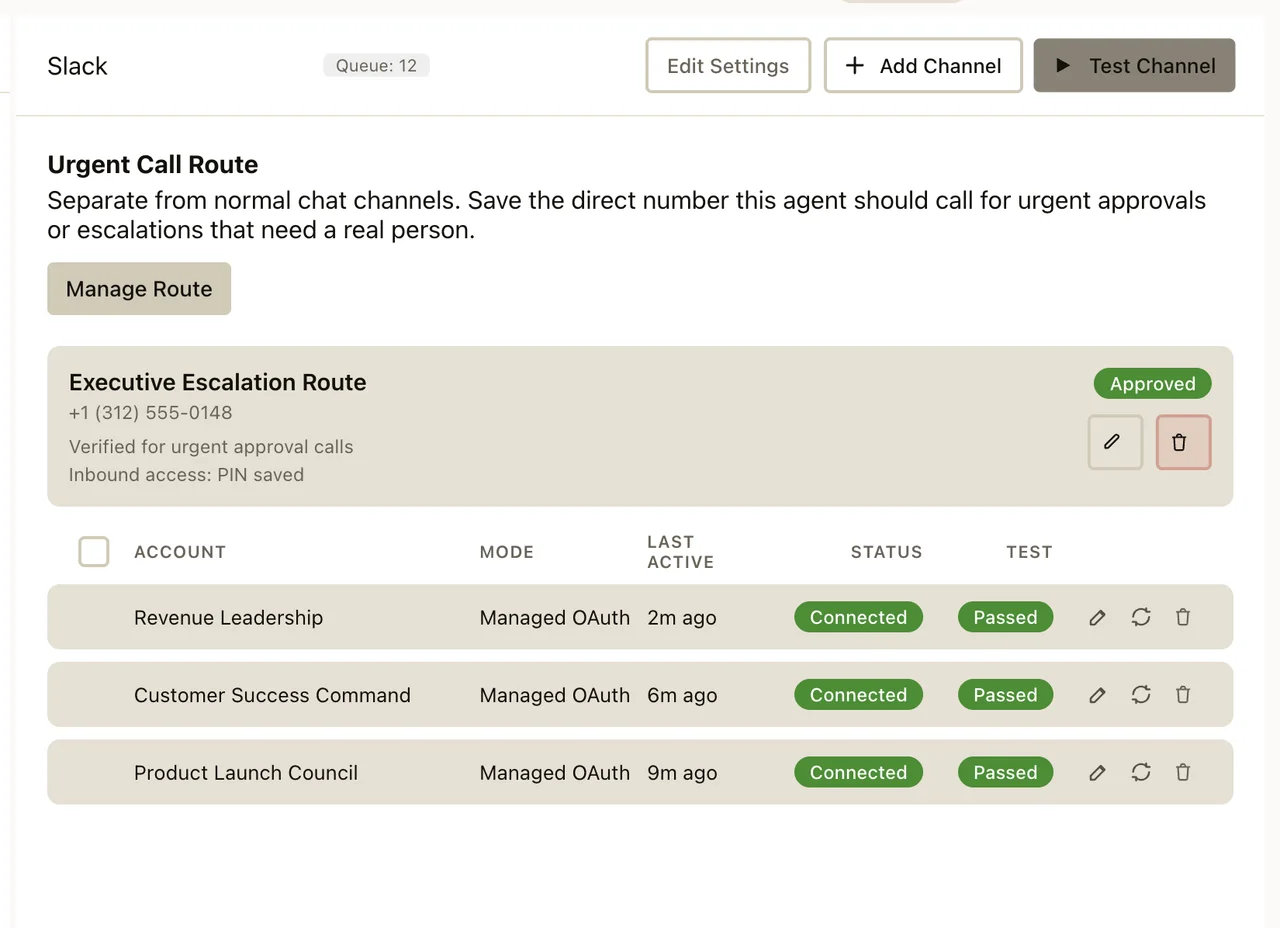
Use this runbook when support needs to troubleshoot channel delivery, approval routing, requires-action follow-ups, or voice escalation behavior.
Use This Page For
Use this page when the caller says:
- The message went to the wrong place.
- The approval reached the wrong person.
- The escalation never fired.
- A voice call or follow-up SMS was expected but never arrived.
- The workflow ran, but the final delivery lane was wrong.
The First Split
Before troubleshooting, classify the failure:
- Connection failure The channel or provider is not connected.
- Targeting failure The route fired, but the destination was the wrong room, thread, user, or phone.
- Approval-routing failure The workflow paused for approval, but the wrong approver or delivery lane was used.
- Escalation failure A follow-up, reminder, or voice escalation should have fired, but did not.
Do not treat these as the same problem class.
Channel Delivery Runbook
For Slack, confirm the allowed channels and direct-message access after the connection test passes. A valid connection can still be restricted from the requested destination.
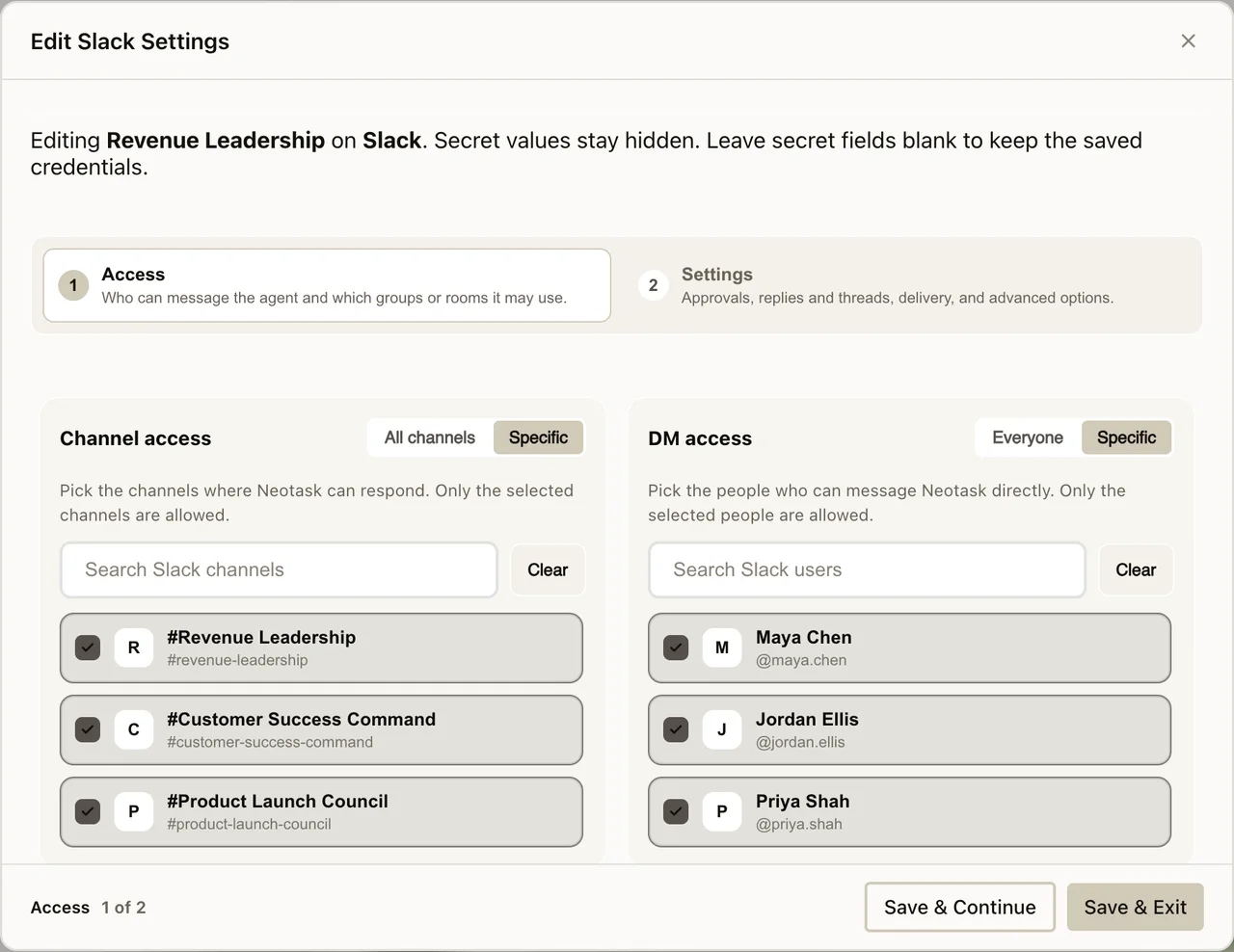
Use this when the caller says a message did not arrive or arrived in the wrong destination.
- Confirm the exact channel. Slack, Discord, Microsoft Teams, SMS, or another supported channel.
- Confirm the exact account or binding. Multiple account rows can exist for the same channel family.
- Confirm the expected target. Team, room, channel, thread, DM, or recipient.
- Confirm the scope. Tenant routing, company routing, or agent-page routing.
- Re-run the exact delivery after the expected target is confirmed.
Common Failure Pattern
The transport is healthy, but the saved target belongs to the wrong team, workspace, or company route.
Approval And Requires-Action Runbook
Open the waiting action and confirm its app, scope, owner, and requested operation before approving, denying, or changing policy.
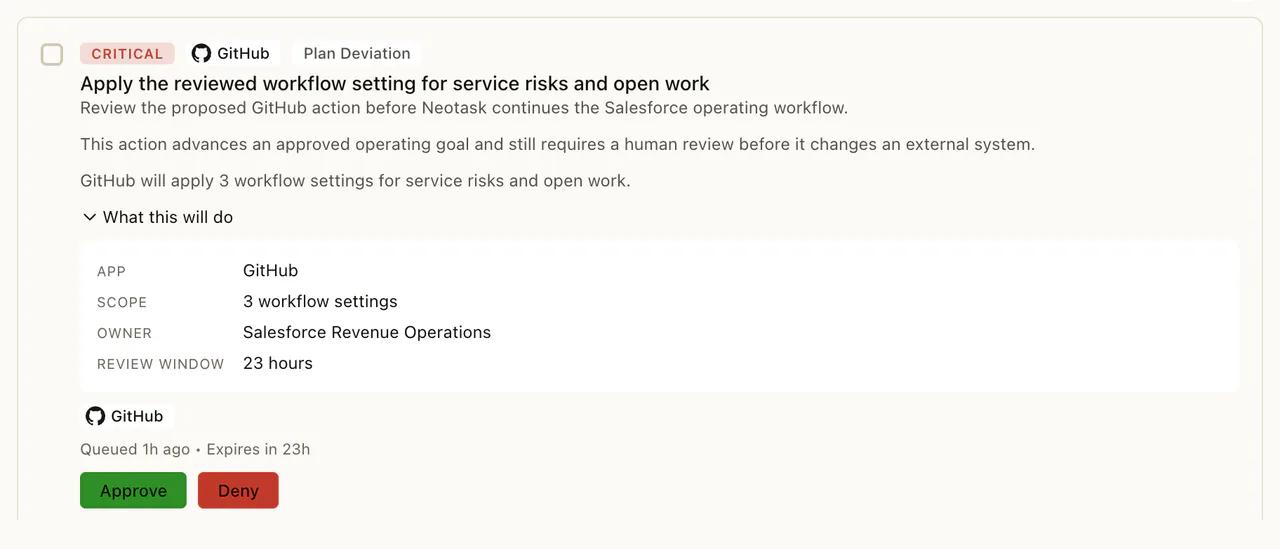
Use this when the caller says an approval was stuck, went to the wrong person, or never surfaced in the expected place.
- Confirm whether the workflow is waiting for approval or already failed for another reason.
- Confirm who was supposed to receive the approval.
- Confirm whether the route should use: a channel delivery an employee route or a voice escalation
- Confirm the exact company or team context where the approval was created.
- Re-test after the approver and route context are confirmed.
Common Failure Pattern
The workflow is healthy, but the saved approval route points at the wrong recipient or the wrong company context.
Exact Click Path For Approval Policy Changes
When the caller is not asking about a pending approval item, but about the company approval policy itself:
- Click Auto.
- Open the company.
- Click Approvals.
- Scroll to Approval Settings.
- Change the overall mode or the Per-App Rules overrides.
- Click Save Approval Settings.
Escalation And Follow-Up Runbook
Use this when the caller expected a follow-up message, escalation, or support callback path.
- Confirm the expected escalation type. Channel follow-up, SMS follow-up, or voice call.
- Confirm the destination. Phone number, channel target, thread, or assigned employee route.
- Confirm whether the escalation belongs to a normal tenant flow or a company flow.
- Re-run the exact escalation path only after the destination is confirmed.
- If the escalation depends on undocumented company behavior, escalate instead of improvising.
Voice Escalation Checks
- Confirm the expected phone number.
- Confirm whether the issue is no call, wrong call context, or wrong specialist route.
- Confirm whether the caller expected a general support route or a member-only specialist lane.
Company And Employee Route Checks
Use these checks when the workflow depends on company-backed routing:
- Confirm the company is the one that owns the route.
- Confirm whether the caller expected employee routing or general team routing.
- Confirm whether the route depends on company-only auth or company-only channel bindings.
- If the company path is under-documented, escalate with the exact company, route, and failing behavior.
When To Escalate
Escalate when:
- The route target is correct, but delivery still fails.
- The same action behaves differently across tenant and company paths.
- The issue depends on company-specific behavior that is not fully documented yet.
- The workflow needs engineering-only runtime details.