Neotask Support Overview
Start At The Product Screen
Open the screen where the problem appears before contacting support. Gateway, Apps, Usage, and Approvals each expose the status and history support needs.
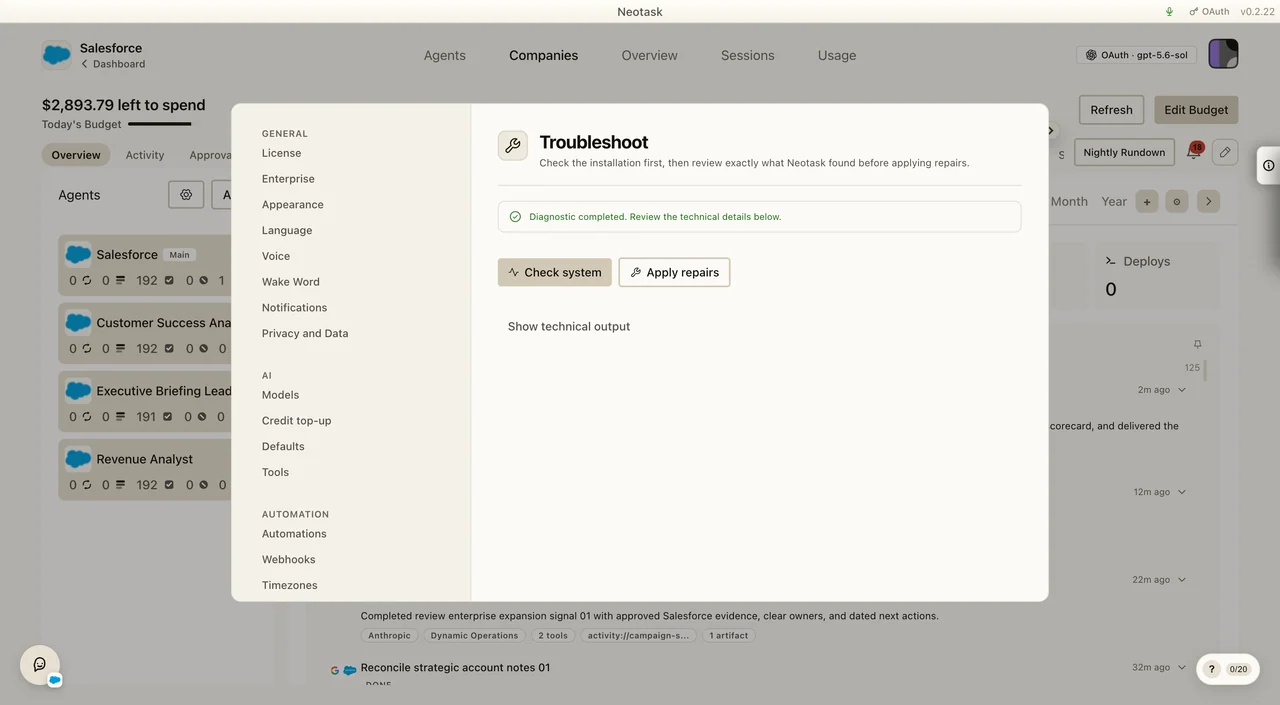
This guide explains what the support phone system is designed to help with and how support access works.
What Support Covers
Neotask support is built to help with:
- desktop app setup
- app startup problems
- MCP app connections
- OAuth setup and reconnects
- API key and manual credential setup
- billing and subscription questions
- login and account-access issues
- teams, channels, automation, and enterprise admin questions
- live troubleshooting based on recent failures, sessions, runtime errors, and workflow context
The support system is not a sales line. It is optimized for troubleshooting and getting members unblocked.
Member Support vs Guest Support
The support number has two support modes:
Guest Support
Guest support is for callers who are not yet recognized as members.
Guest support can help with:
- how to sign up
- where to log in
- public setup guidance
- payment or sign-up friction before the account is active
- where to find official docs
Member Support
Member support is for recognized callers whose phone number already matches a saved support route or employee record.
Member support can help with:
- tenant-specific troubleshooting
- deeper app and OAuth setup
- billing and account context
- workspace, automation, and company-admin questions
- recent failures, logs, session history, and runtime context
- escalations and support follow-up
That means the support line can often investigate the issue directly instead of only telling the user what the docs say.
Main Support Categories
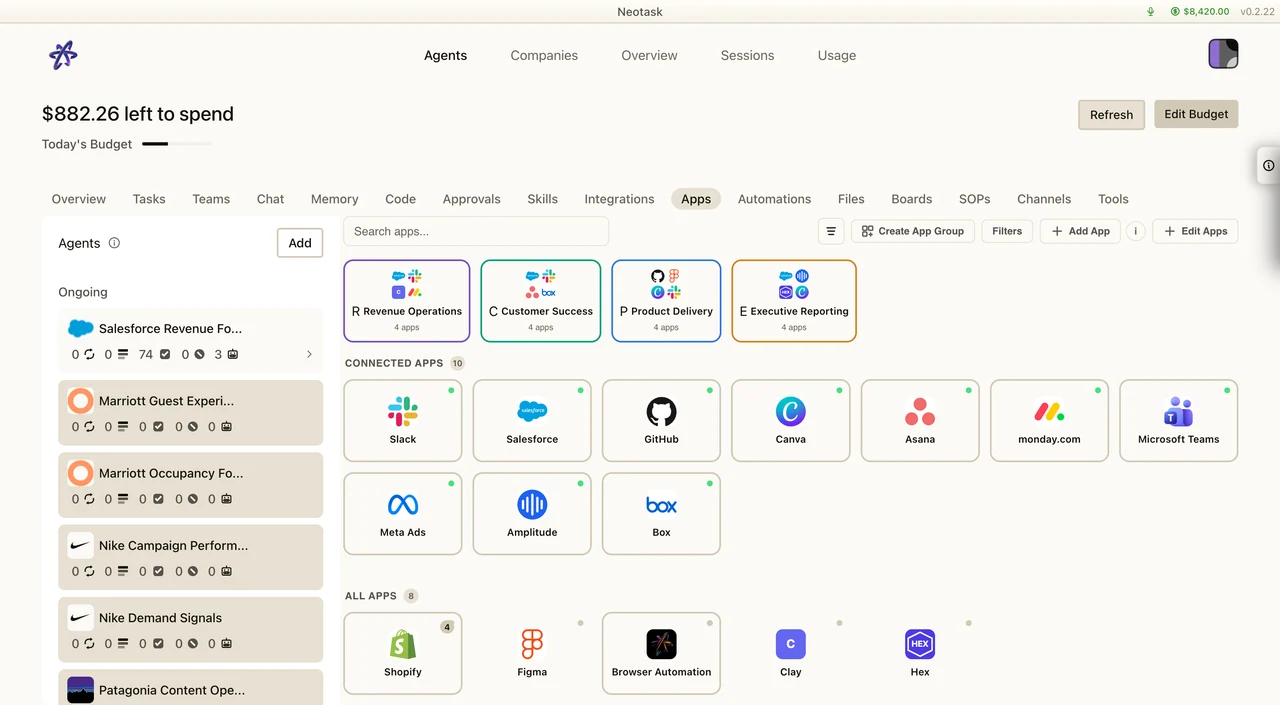
For app authentication, open Apps and check whether the requested service is connected before troubleshooting its tools.
Recognized member callers are routed into these main categories:
- Setup and Troubleshooting
- MCP and OAuth Integrations
- Billing, Login, and Account Access
- Workspace, Teams, Automation, and Enterprise Admin
Guest callers stay in the limited guest-support lane unless a saved member route is recognized.
Recommended Routing Sequence
When support answers a call, the fastest sequence is:
- Decide whether the caller should stay in general support or move into recognized member support.
- Identify the primary issue class: setup, MCP/OAuth, billing/access, or workspace/automation.
- Keep the caller in one lane unless the problem clearly changes categories.
- If the issue needs follow-up, create a support case before the call ends.
Use these routing cues:
- "I cannot finish setup" usually starts in setup support.
- "OAuth", "callback URL", "client ID", "client secret", or a provider name usually routes to MCP auth support.
- "I paid but cannot access it" usually starts in billing/account support.
- "Messages are going to the wrong place" or "automation is not firing" usually starts in workspace and automation support.
What To Have Ready Before You Call
Support is fastest when you have:
- the phone number saved on your account or employee profile
- the name of the app or provider you are trying to connect
- the exact status shown in the Apps tab
- the error text, if there is one
- the callback URL or environment variables you already configured
For OAuth issues, support may ask:
- which provider you are connecting
- whether it uses managed OAuth, manual OAuth, API keys, or manual credentials
- whether the app shows
pending,connected,error, or another state
Best Support Entry Points
Use the support line when:
- you are blocked from setup
- reconnecting an app did not fix the problem
- you need step-by-step OAuth setup guidance
- you need help understanding auth status or reconnect paths
- you want the system to inspect what failed recently and explain the likely cause
Use the docs first when:
- you only need the public setup steps
- you are browsing supported apps
- you need the callback URL or environment-variable naming pattern