Support MCP Auth And OAuth
Start From The Provider Screen
- Open Apps and select the provider.
- Read the authentication modes shown for that provider.
- Use OAuth when it is available.
- Use a key or manual credential when the provider requires it.
- Confirm the connected state before investigating tool scope.
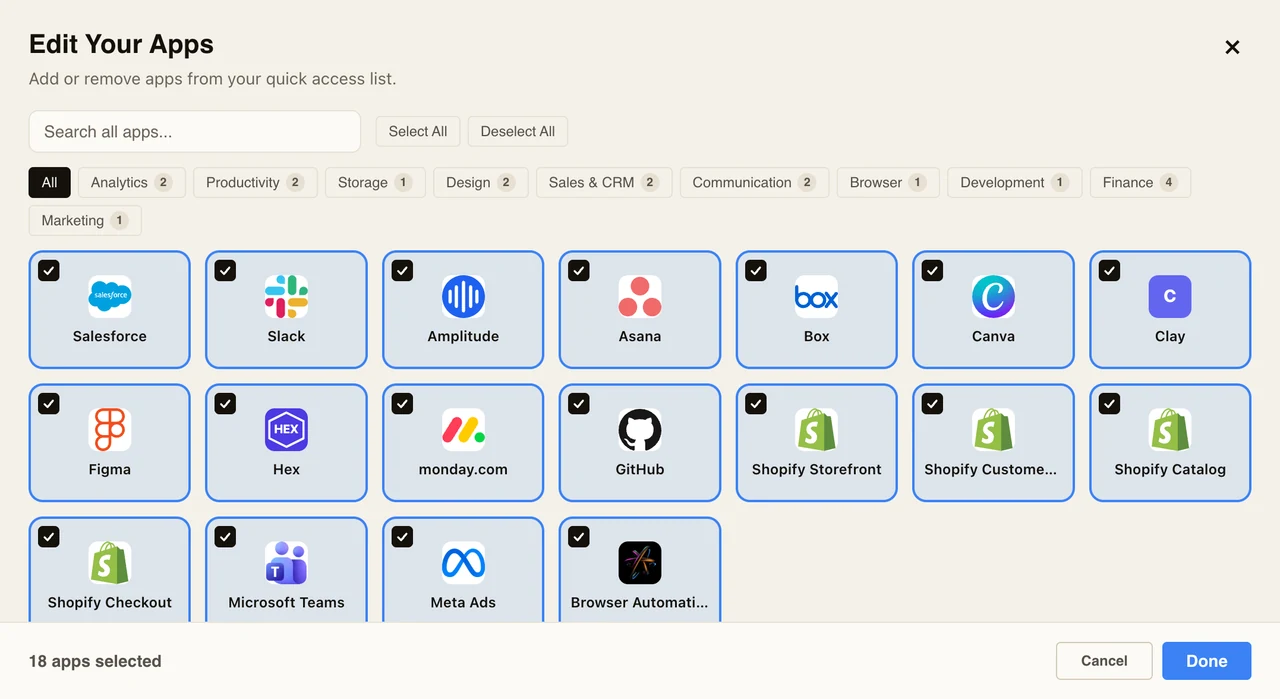
This is the main support reference for MCP app authentication, OAuth setup, reconnect paths, scope placement, and auth-status interpretation.
Support-Safe Rules
Support should separate three kinds of instructions:
What the caller does in Neotask
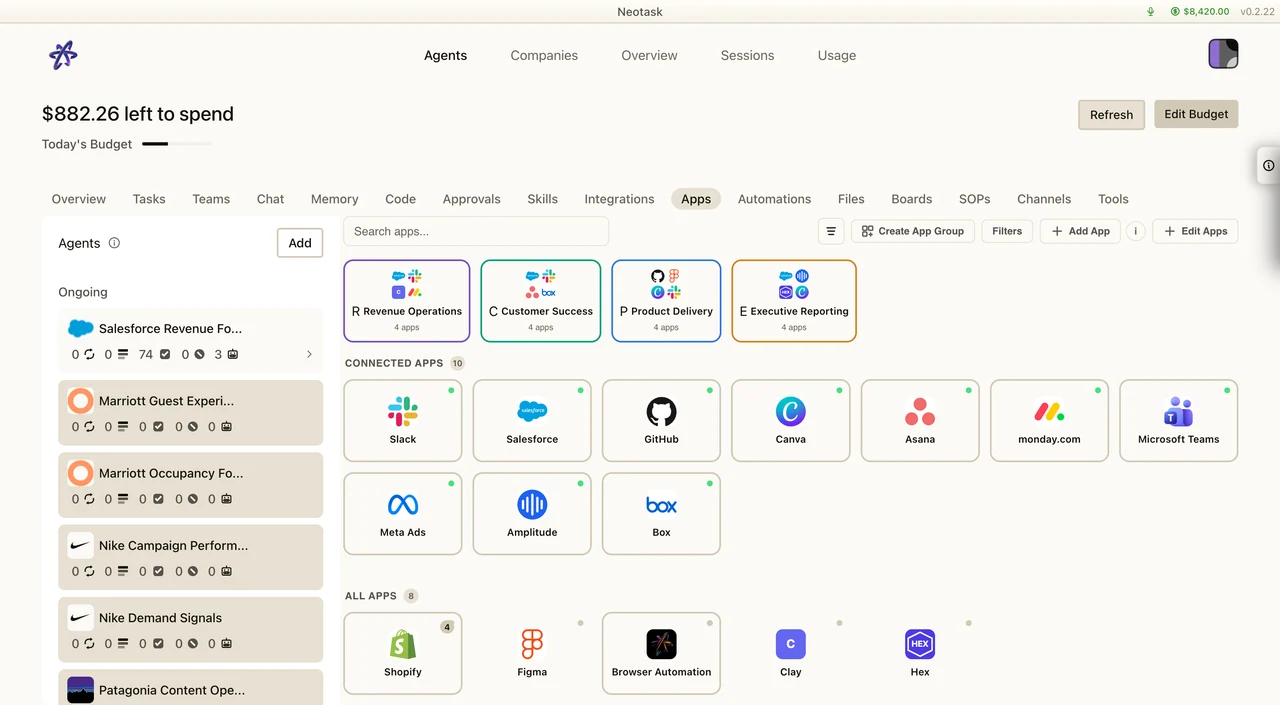
After authorization, return to Apps and confirm that the service appears in the connected group. This verifies the saved app state before testing a tool.
Examples:
- Open the provider card.
- Paste
clientIdorclientSecret. - Save a custom URL.
- Reconnect the provider in the correct scope.
What the caller or admin does in the provider portal
Examples:
- Create an OAuth app.
- Add the exact callback URL.
- Approve scopes.
- Create an API key or token-based auth credential.
What only Neotask staff should touch
Examples:
- Proxy environment variables.
- Internal auth-truth overrides.
- Engineering remediation notes.
- Hidden provider fallbacks that are not part of the support-safe user flow.
Do not tell callers to edit staff-only proxy config.
MCP Auth Modes
Neotask supports these main auth paths:
Managed OAuth
The provider should complete OAuth directly from Neotask.
Typical support flow:
- Open the provider card.
- Click Connect.
- Complete the browser consent flow.
- Return to Neotask and confirm the state moves to
connected.
Managed DCR
The provider supports dynamic client registration, so the caller should not have to create their own app in the provider portal.
Support action:
- Treat this as a managed flow first.
- If it repeatedly fails, check whether the provider has a known fallback or broken-managed note.
Manual OAuth
The caller must create or configure an OAuth app before connecting.
Typical support flow:
- Open the provider card.
- Copy the exact callback URL shown by Neotask.
- Create or open the provider app in the developer portal.
- Paste the callback URL there exactly.
- Copy the
clientId. - Copy the
clientSecretif the provider issues one. - Paste those values into Neotask.
- Start the OAuth flow and approve access.
API Key
The provider only needs an API key or token.
Typical support flow:
- Create or copy the API key from the provider.
- Paste it into Neotask.
- Save the connection.
- Re-test the provider.
Manual Credentials
The provider needs structured credential fields instead of a browser OAuth flow.
Typical support flow:
- Gather every required field.
- Confirm the right instance or account URL.
- Enter each field exactly.
- Save and test again.
No Auth Or Local Runtime
Some providers do not need saved auth, or only work when a local runtime is active.
Support action:
- Do not force these into OAuth troubleshooting.
- Verify the runtime or plugin prerequisite first.
Support Source Of Truth Order
When docs disagree, use this order:
- The provider card and field requirements in the product.
- Manual auth truth overrides and reviewed classifications.
- Generated provider-auth truth and current support MCP catalog.
- OAuth setup guides for exact callback URLs, scopes, and required fields.
If those sources still conflict, escalate instead of guessing.
Scope Placement Runbook
Before reconnecting any provider, confirm where the caller is failing.
Apps Versus Integrations
Support must distinguish these two surfaces before giving click-by-click guidance:
- Apps
- MCP providers such as Stripe, Slack, Salesforce, HubSpot, Airtable, Box, Figma, and other provider cards
- these can use OAuth, manual OAuth, API keys, or manual credentials
- Integrations
- built-in Google Workspace services such as Gmail, Docs, Sheets, Drive, and Calendar
Do not route a caller to Integrations just because the provider uses OAuth.
Many MCP apps use OAuth inside Apps.
Tenant
Use tenant scope for normal workspace usage and personal workspace tools.
Company
Use company scope for company automations, company tasks, company channels, and company-run autonomy.
Main Agent
Use main-agent scope for global agent-page teams and agent-specific routing.
The Exact Support Sequence
- Ask where the failure is happening. Normal workspace, company workflow, or agent/team surface.
- Ask where the caller originally connected the provider. Workspace Apps tab, company app modal, or agent page.
- Reconnect only in the failing scope.
- Re-run the exact failing action.
If the provider is connected in the wrong scope, a green status somewhere else does not fix the real failure.
If the failure is in a company workflow and the caller is talking about Google Workspace services for that company, prefer:
- Auto
- open the company
- Integrations
Do not default to the generic agent-page Apps tab for that case.
If the failure is in a company workflow and the caller is talking about an MCP app such as Stripe, Slack, Salesforce, or another provider card, prefer:
- Auto
- open the company
- Apps
- open the app card
- reconnect there
For a deeper scope/run-time guide, use Support MCP Scope And Runtime.
Auth Classification Cheatsheet
These classifications matter most in support:
managed_dcr
Start with the one-click flow. Only move to fallback if product truth says the managed path is known-bad.
managed_dcr_broken
Do not loop the same broken one-click flow forever. Move to the documented fallback or escalate.
manual_oauth
Confirm callback URL, client credentials, scopes, and tenant/account choice.
custom_url_first
Confirm the instance or tenant URL before retrying auth.
manual_credentials
Stay in the manual-credentials path. Do not switch the caller into OAuth unless product truth requires it.
api_key
Check the exact API key field and whether the caller pasted the correct key for the correct account.
no_auth
Check runtime prerequisites instead of discussing OAuth.
unreachable
Do not improvise a setup path. Escalate.
Auth Status Meanings
none
The provider is not connected yet.
pending
Setup started but did not finish.
Common causes:
- The browser flow was never completed.
- The callback did not return cleanly.
- The provider is still waiting for final validation.
connected
The saved auth is currently valid in that scope.
This does not automatically prove the provider is connected in the correct scope, with the correct account, or with the correct custom URL.
error
The saved auth or credential state is unusable.
Common causes:
- Wrong credentials.
- Wrong callback URL or scopes.
- Token refresh failure.
- Wrong instance URL or tenant URL.
expired
The saved token is no longer usable and needs reconnect or refresh.
Treat expired and error as reconnect-required unless provider-specific truth says otherwise.
Manual OAuth Checklist
When support helps with manual OAuth, verify all of these:
- The exact provider name.
- The exact callback URL shown by Neotask.
- Whether the provider requires both
clientIdandclientSecret. - The exact scopes shown in product truth.
- The correct tenant, workspace, or provider account.
- The correct scope in Neotask: tenant, company, or main agent.
Why The Callback Host Is A Neotask Domain
Many OAuth providers redirect back to the Neotask MCP auth service. That is expected. Support should confirm the callback URL exactly as shown by Neotask and should not swap in an unrelated domain.
High-Friction Provider Exceptions
Use these rules before giving generic reconnect advice:
Microsoft family
Microsoft Teams, Microsoft 365, Azure, Azure DevOps, and PowerBI should be treated as Microsoft Entra manual OAuth setups unless current truth says otherwise.
Vercel
Vercel is a managed-flow exception. If the managed path has already failed, move to fallback or escalate instead of repeating it.
NetSuite
NetSuite is manual credentials with account-specific values, not a normal hosted OAuth flow.
JetBrains
JetBrains is a local-runtime/plugin case. Do not force it into standard cloud OAuth troubleshooting.
Salesforce
Salesforce requires careful Connected App setup and can still need escalation even after the documented steps are correct.
Indeed
Indeed should be treated as a manual or pre-registered OAuth path instead of an open managed DCR path.
For the detailed versions of those flows, use Support MCP Provider Exceptions.
Connected But Tools Still Fail
If the caller says the provider is connected but tools still fail, check this order:
- Wrong scope.
- Wrong workspace, tenant, or provider account.
- Missing scopes.
- Wrong custom URL, base URL, or instance URL.
- Local runtime or plugin not active.
- Auth-state versus runtime-readiness mismatch.
Do not assume a reconnect alone fixes these.
What Support Should Gather Before Escalating
Collect these every time:
- Provider name.
- Current auth status.
- Auth mode.
- Failing surface.
- Connection scope used.
- Callback URL or custom URL if relevant.
- Exact credential field names already filled in.
- Whether the issue is first-time setup or reconnect after a previous success.