Support App Setup And Troubleshooting
This page is the first-stop runbook for desktop app setup, startup problems, and common user-visible failures.
First Checks
If the app is not behaving correctly, run this sequence first:
- Confirm you are signed in to the correct account.
- Restart the desktop app.
- Re-open the Apps or Integrations page and check the current status.
- If the issue is provider-specific, reconnect only that provider instead of resetting everything.
- If the problem started after an update, note the exact version before changing settings.
If the caller is already lost, support should reduce the issue to one of these first:
- app will not open
- app opens but the provider will not connect
- provider shows connected but tools still fail
- channel or automation behavior is wrong
- voice or microphone setup is failing
Desktop App Setup
Fresh Setup Checklist
- Install the latest desktop app build.
- Sign in with your account.
- Complete onboarding for model/provider access if prompted.
- Open the Apps tab for MCP apps.
- Open the Integrations tab for built-in services such as Google or messaging channels.
- Connect only the providers you actively need first.
The Apps screen shows connected services and the catalog of services that are available to add.
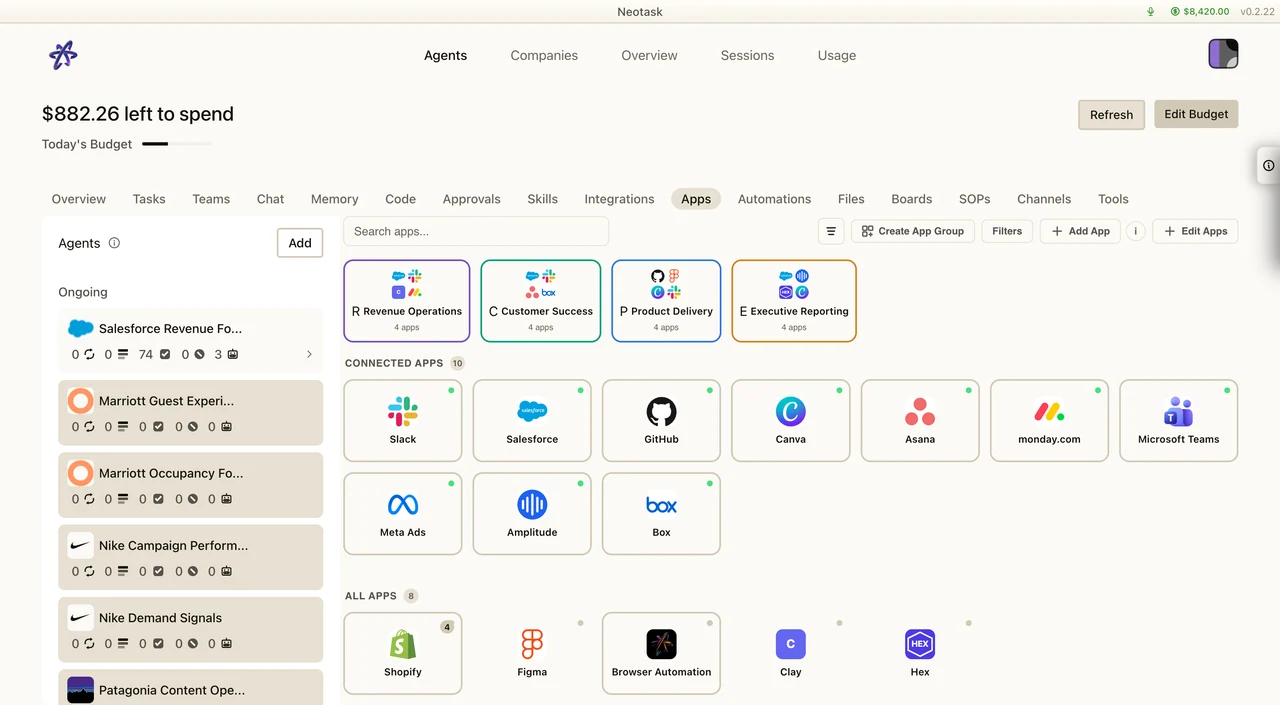
Use this split:
- Apps for MCP providers such as Stripe, Slack, Salesforce, HubSpot, Airtable, and Box
- Integrations for built-in Google Workspace services such as Gmail, Docs, Sheets, Drive, and Calendar
If the issue belongs to one company instead of the caller's general workspace:
- Click Auto.
- Open the company.
- Use the company Integrations tab for company Google Workspace connections.
- Use the company Apps tab for company MCP app connections.
When the requested service is missing, open the searchable app picker and add it from there.
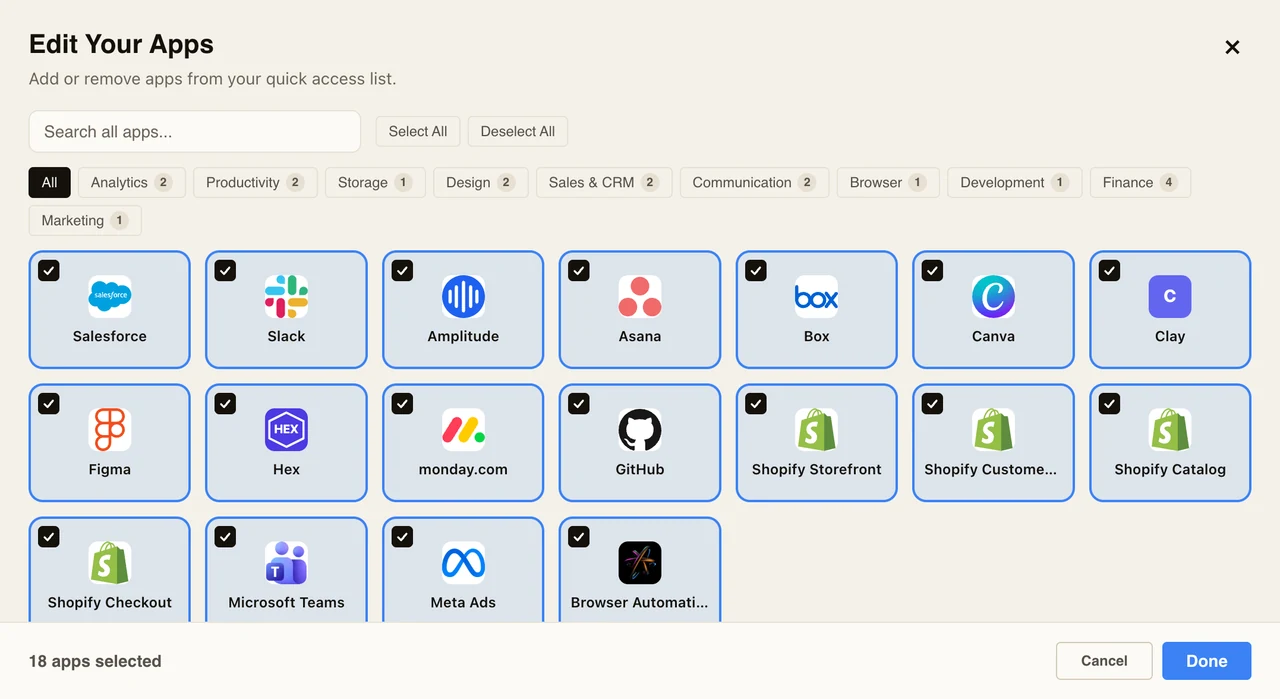
If Setup Stops Midway
- If the Apps tab shows
pending, the auth flow was started but not completed. - If the Apps tab shows
error, the provider rejected auth or the saved credentials are no longer usable. - If the app opens but tools are missing, the provider may not actually be connected even if an earlier flow looked successful.
Symptom-First Troubleshooting
The app opens, but the provider never finishes connecting
Check:
- whether a browser auth window was blocked
- whether the callback URL matches the one required for that provider
- whether the provider needs manual OAuth instead of managed OAuth
- whether you entered the correct
clientIdandclientSecret
Usually fix by:
- Disconnect the provider.
- Re-open the provider setup panel.
- Re-check the callback URL and required fields.
- Start the connection again.
If the provider clearly needs manual OAuth or manual credentials, route to MCP auth support instead of repeating generic reconnect steps.
The provider used to work, but now shows an error
Common causes:
- expired or invalid token
- failed refresh
- wrong or rotated client secret
- provider-side app registration drift
Use the auth status guide in Support MCP Auth And OAuth to interpret the exact state before reconnecting.
The provider shows connected, but tools do not behave correctly
Check:
- whether the connection was made in the right scope
- whether the provider supports the exact features you expect
- whether the provider needs additional scopes
- whether the app or workspace account you connected is the right one
Then ask:
- Is the provider connected in the workspace the caller is actually using?
- Does the provider need broader scopes or a different account?
- Are the missing tools tied to a local runtime, plugin, or companion app state?
If support cannot prove the connection state from the docs and current product truth, escalate instead of inventing a hidden setting.
Startup Issues
The app will not start
- Fully quit the desktop app.
- Start it again.
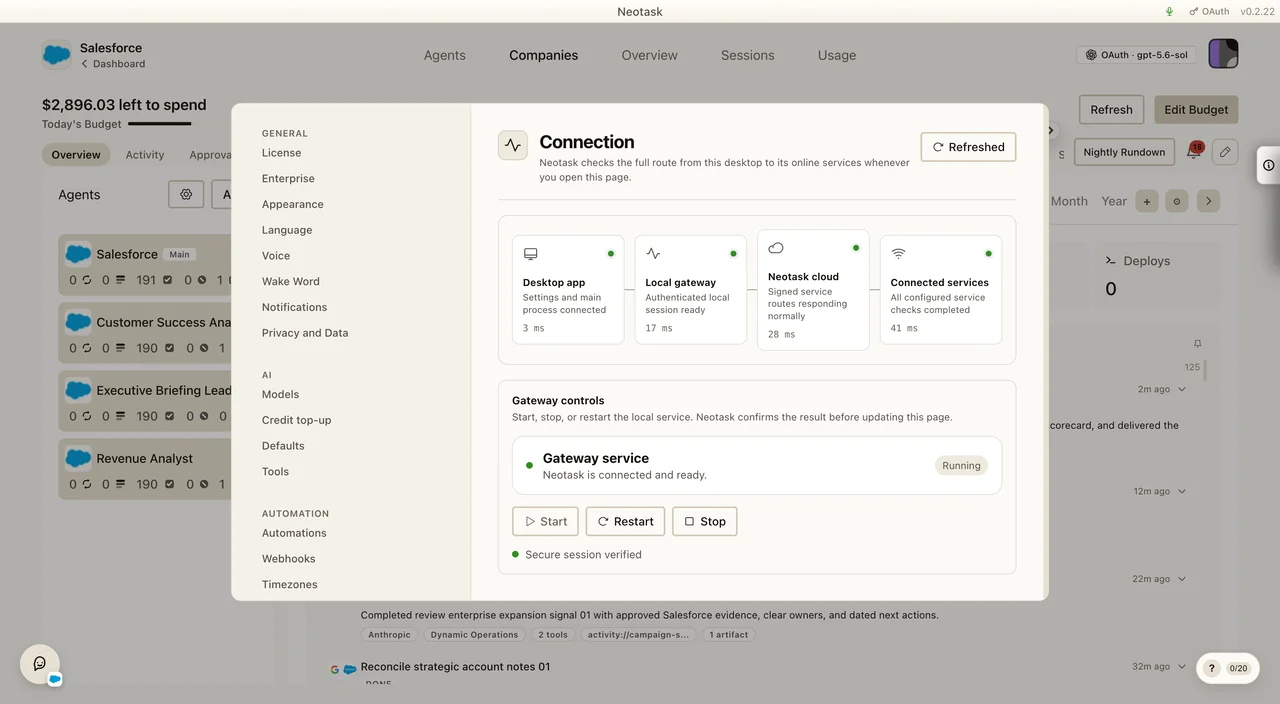
- If the app reaches the main window, open Settings → Infrastructure → Connection.
- Check the Local gateway stage and use Start or Restart under Gateway controls.
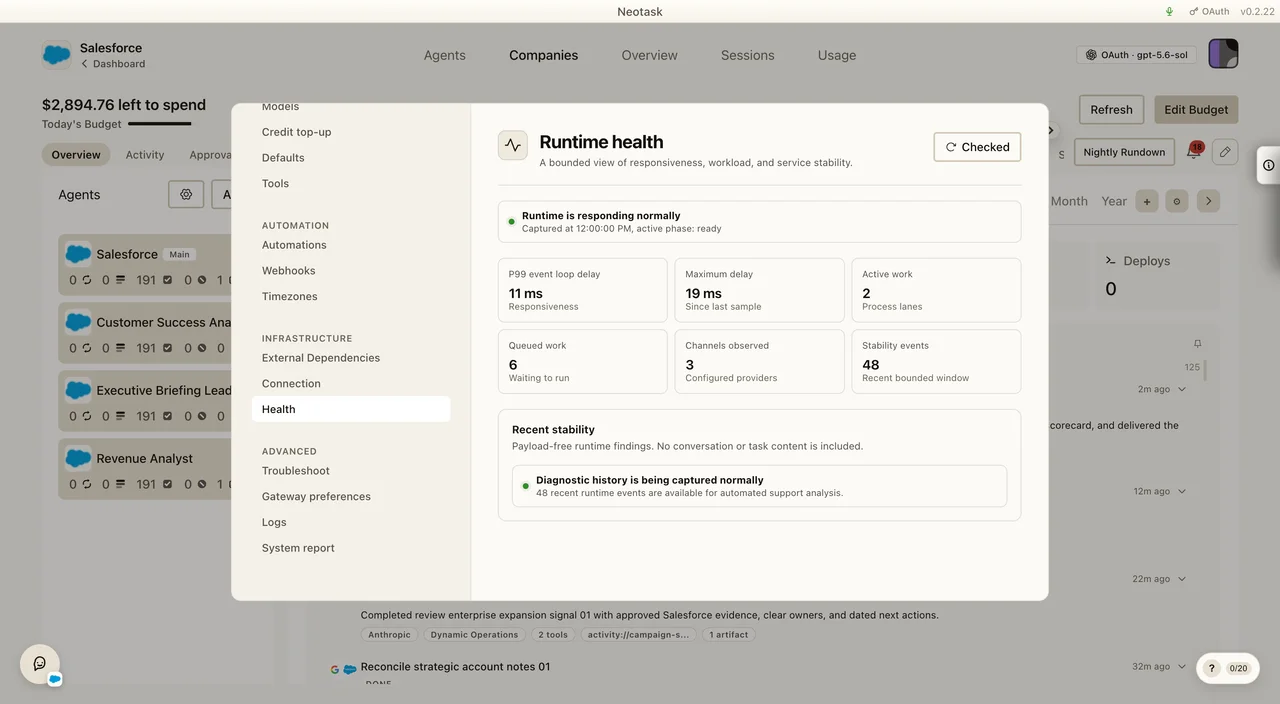
- Run Settings → Infrastructure → Health.
- Review Settings → Advanced → System report.
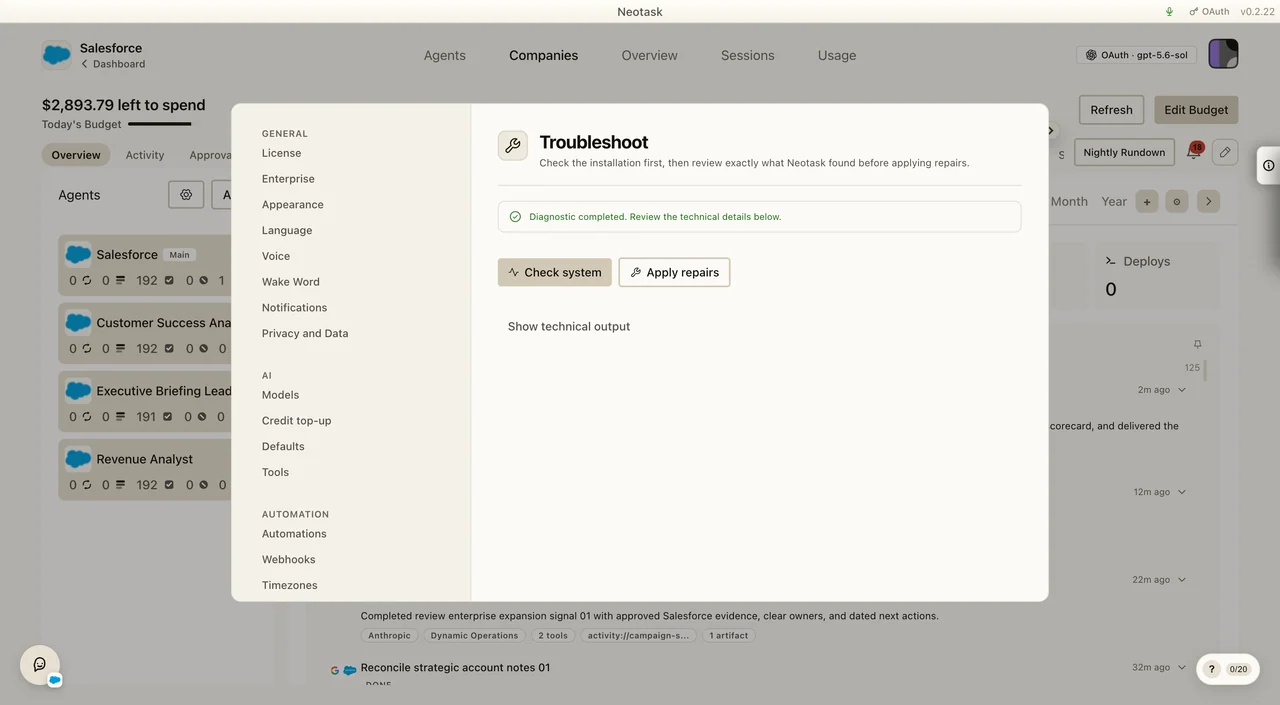
- Open Settings → Advanced → Troubleshoot and click Check system when repairs are needed.
- Click Apply repairs when the check offers it.
- Wait for the follow-up check and copy the technical output if it still fails.
The Health screen shows whether the connected Gateway is responsive and whether work is backing up.
Use Troubleshoot only after checking the live state above. It is the screen that runs the Doctor and applies repairs.
Support should also ask:
- whether the issue started after an update
- whether the user is blocked before login or after login
- whether the failure is desktop-wide or only affects one provider flow
Voice or microphone support is failing
Check:
- operating-system microphone permissions
- the selected input device
- whether another app already owns the microphone
Channels are connected, but behavior is wrong
Use the public channel runbooks:
Support should classify channel failures as one of:
- auth or connection failure
- routing or destination-targeting failure
- approvals or automation handoff failure
- delayed delivery or platform-side limitation
When To Escalate
Escalate to a human or deeper support lane when:
- the caller is blocked after a reconnect attempt
- the provider needs manual OAuth setup guidance
- the auth state conflicts with what the user sees
- the issue appears tenant-specific or company-specific
If the issue is clearly about OAuth, callback URLs, auth classifications, or reconnect logic, route directly to the MCP/OAuth support lane.