Neotask Billing And Credits
This guide covers subscriptions, checkout issues, billing access, and credits.
Guest Billing Support
Guest support can help with:
- checkout trouble before activation
- payment confirmation delays
- where to start billing
- public pricing and plan-selection guidance
Guest support cannot disclose tenant-specific balances, subscription state, or account records unless the caller is recognized and verified through member support.
Member Billing Support
Recognized member callers can be helped with:
- current subscription status
- billing access state
- credit balance basics
- scheduled task-fee balance and blocked-run state
- overage blocking state
- BYOK versus system-key mode questions
Free Plan Support Contract
Free users have a two-phase message allowance:
- first
10messages/events as a one-time intro allowance - after that,
5messages/events per user-local calendar day
Every Free message still needs usage coverage. The user can cover provider/token usage with Neotask credits or with their own provider keys where supported. Free users receive the standard $10 starter credit grant, can purchase additional credits, and get no overage. If credits are depleted or the provider key has no balance, usage hard-stops even if message quota remains.
Free users can use:
- main chat
- boards and live artifacts
- the coding subpage
- app and integration connection flows
- connected apps inside allowed chat, boards, and coding usage
Free users cannot:
- run company tasks or company automations
- operate a company dashboard beyond onboarding/plan preview
- create, edit, run, skip, or delete user-created automations, cron jobs, reminders, or scheduled jobs
- add custom agents
- use overage
Company onboarding may be available on Free, but actual company operation requires at least an Individual subscription.
Exact Click Path For Billing
Billing is inside the app settings.
Exact path:
- Click the avatar in the upper-right corner.
- Click Settings.
- In the left menu, open AI.
- Click Credit top-up.
The current balance and credit purchase controls appear at the top of this screen.
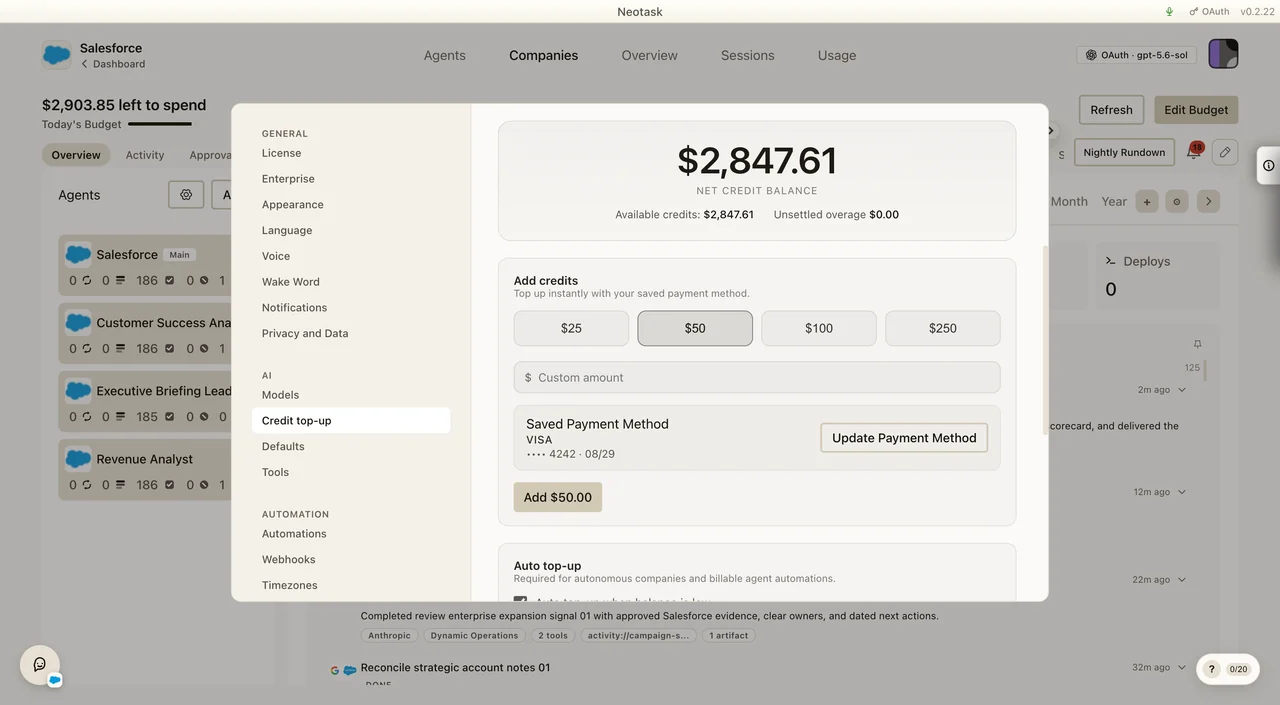
Provider connection choices are separate. Open Settings → AI → Models to switch between hosted credits, provider keys, and supported subscription connections.
Update Payment Method
- Open Settings.
- Go to AI → Credit top-up.
- In Saved Payment Method, click Update Payment Method.
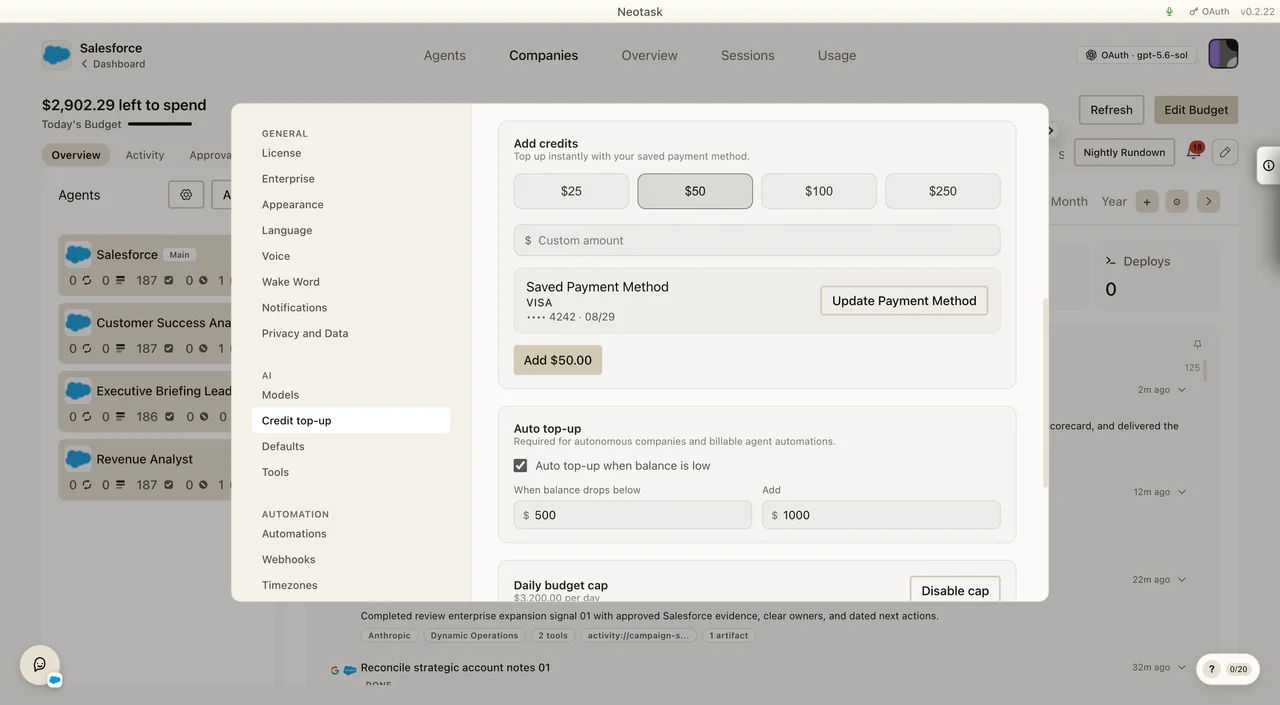
Add Credits
- Open Settings.
- Go to AI → Credit top-up.
- Select an amount or enter a custom amount.
- Click the button showing the selected amount and confirm.
Auto Top-Up
- Open Settings.
- Go to AI → Credit top-up.
- Turn on Auto top-up when balance is low.
- Set the threshold and amount.
- Confirm that the Daily budget cap is configured for autonomous companies or billable automations.
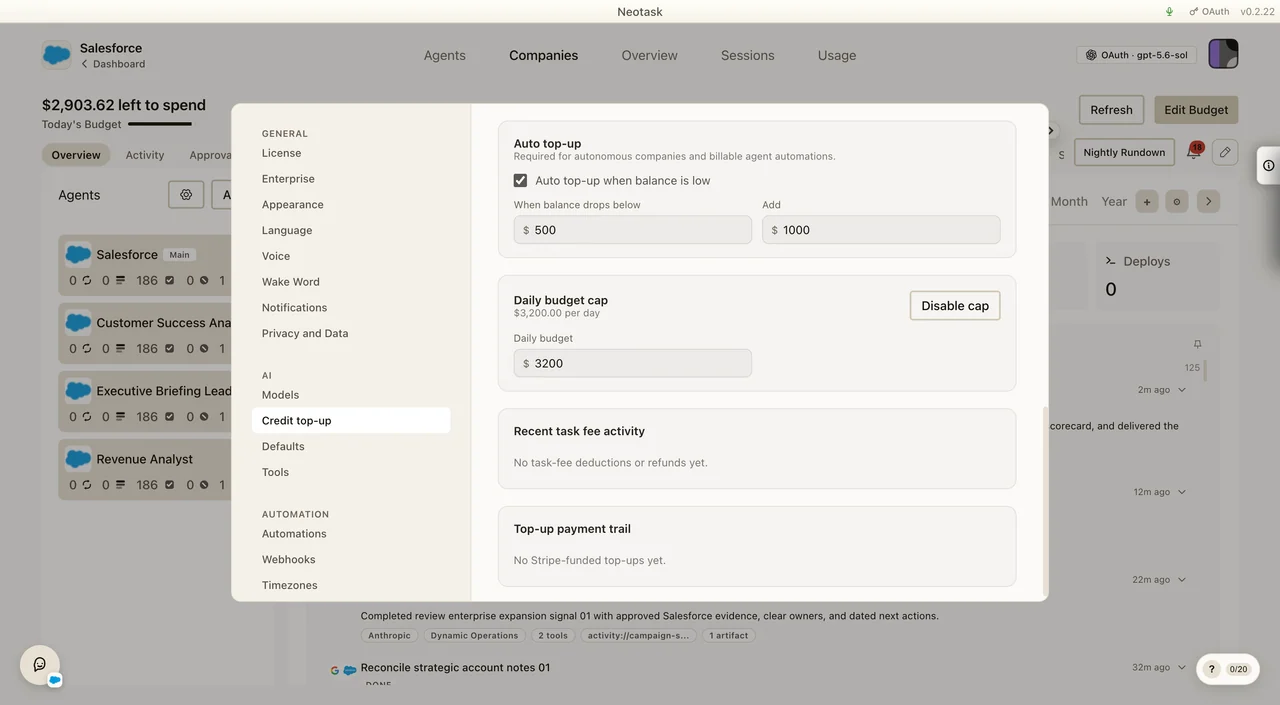
Automatic top-ups for scheduled task billing never exceed the remaining daily budget headroom for that day.
Scheduled Task Fees
Neotask charges a flat $1 for each real billable scheduled execution after the included setup-task allowance is exhausted.
- Individual includes 25 setup tasks
- Business includes 50 setup tasks
- Enterprise includes 50 setup tasks
- tool calls inside a task do not create extra flat charges
- one-off chat turns do not create task-fee charges
If the caller is in BYOK mode, provider usage may go to their own provider account, but scheduled task fees still use Neotask credits.
Scheduled runs on local models: while the local-model task fee is switched off, a run whose every model call ran on a device-local model is charged $1 at start and credited back once its usage has settled, normally 20 to 30 minutes after it finishes. The execution shows billing status waived_local_model_run with the reason, and the ledger shows the fee and a matching task-fee refund. A run whose own session made any hosted model call, including a fallback from a local model, keeps the fee. Hosted calls made by sub-agents the run starts are billed as normal usage and are not counted for this fee. A run that reports no usage within 24 hours also keeps it, and so does a run whose usage cannot be told apart from another run of the same task, such as a hosted call the previous run made moments before this run started.
When Automations Stop Because Of Billing
Scheduled task fees do not run into overage.
If a tenant has exhausted the included setup-task allowance and their task-spend balance is 0 or below:
- the scheduled run is blocked before launch
- the automation or schedule is paused, not deleted
- it will automatically become runnable again when credits are restored
Support should treat this as a billing-readiness or task-balance issue, not as an automation-data-loss issue.
Statements, PDFs, And Refund Trails
Task-fee deductions and task-fee refunds are visible in user billing history.
Support can direct the caller to:
- execution statements for a specific billed task
- payment task-fee statements that show which top-up purchase funded which task-fee debits
- downloadable PDFs for both views
This is the primary dispute trail for scheduled task fees.
Billing Terms
stripeSubscriptionStatusdescribes the subscription lifecycle state.keyModeindicates whether usage is running on the platform keys or the member’s own keys.creditBalanceandcreditTopUpBalancerepresent spendable credit pools.overageBlockedmeans usage may be stopped until billing is resolved.- scheduled task fees use separate launch blocking when balance is
0or below after setup-task allowance is exhausted
Common Billing Problems
Payment succeeded but the workspace did not update
- refresh the account state
- allow for short billing propagation delays
- if the subscription state is still stale after the normal delay, escalate to human billing review
The caller says they paid but access is blocked
- check whether billing access is actually allowed
- check whether the subscription is
past_due,unpaid, or otherwise blocked - check whether overage blocking is active
The caller is confused about BYOK
- explain that BYOK routes token costs directly to the user’s provider account
- explain that system-key mode uses platform billing and platform credits
Escalation Rule
If the billing state is contradictory or does not match the caller’s payment claim, create a support case and escalate instead of improvising.